BumbleTap
What it does
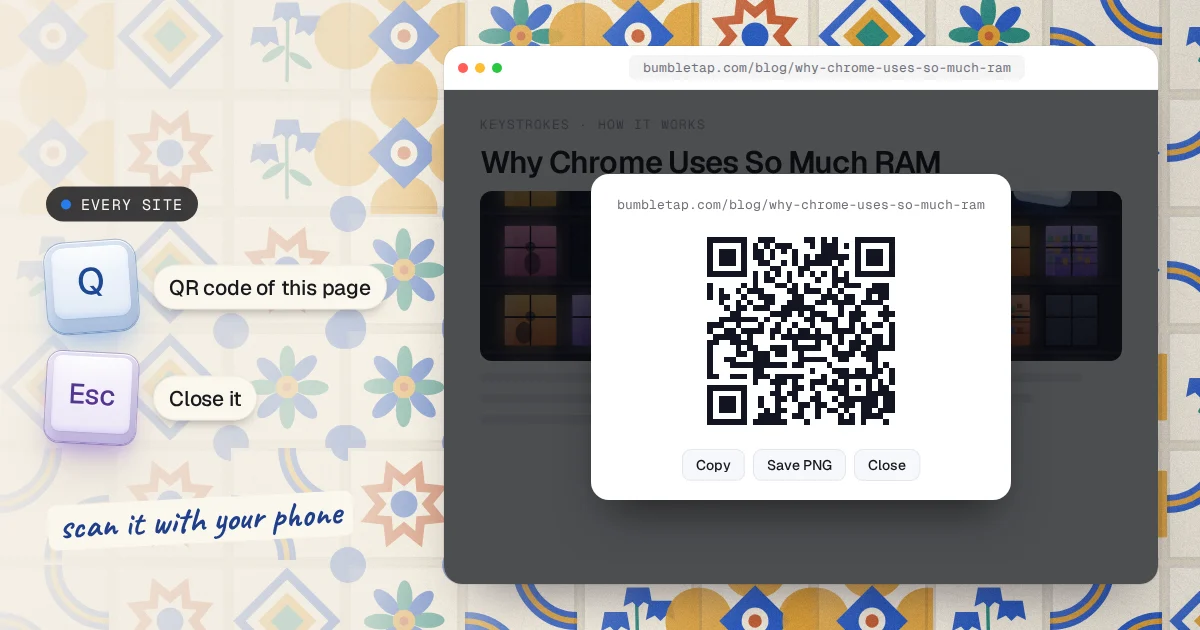
Sending a link from laptop to phone is a solved problem that nobody solved well — right-click, share, pick an app, wait. This binds it to a single key. Press Q and a QR of the current page appears; point your phone at it and you're there. Highlight something first and it encodes that instead, so a wifi password, an address, or a tracking number goes across just as easily.
- Encodes your selection if you have one, otherwise the page URL
- Copy to clipboard and Save PNG built in
- Esc or a second press closes it; no leftover DOM
When you’d use it
Open this page on your phone
You're reading a recipe, a long article or a map on your laptop and want it in your hand. Press Q, point your phone's camera at the screen and tap the link it finds. No messaging yourself, no retyping a long address.
Hand someone a link across the table
Showing a page to a colleague or a friend? Press Q and let them scan it from your screen. It works with any phone camera, with nothing to install on theirs.
Move a password, an address or a code
Select a wifi password, a delivery address or a tracking number on the page, then press Q. The code holds exactly what you selected, and the phone shows it as text, ready to copy.
Step by step
Press Q on the page
Press Q anywhere on the page, as long as you aren't typing in a box. A card opens in the middle with the code, the page's title and its address.
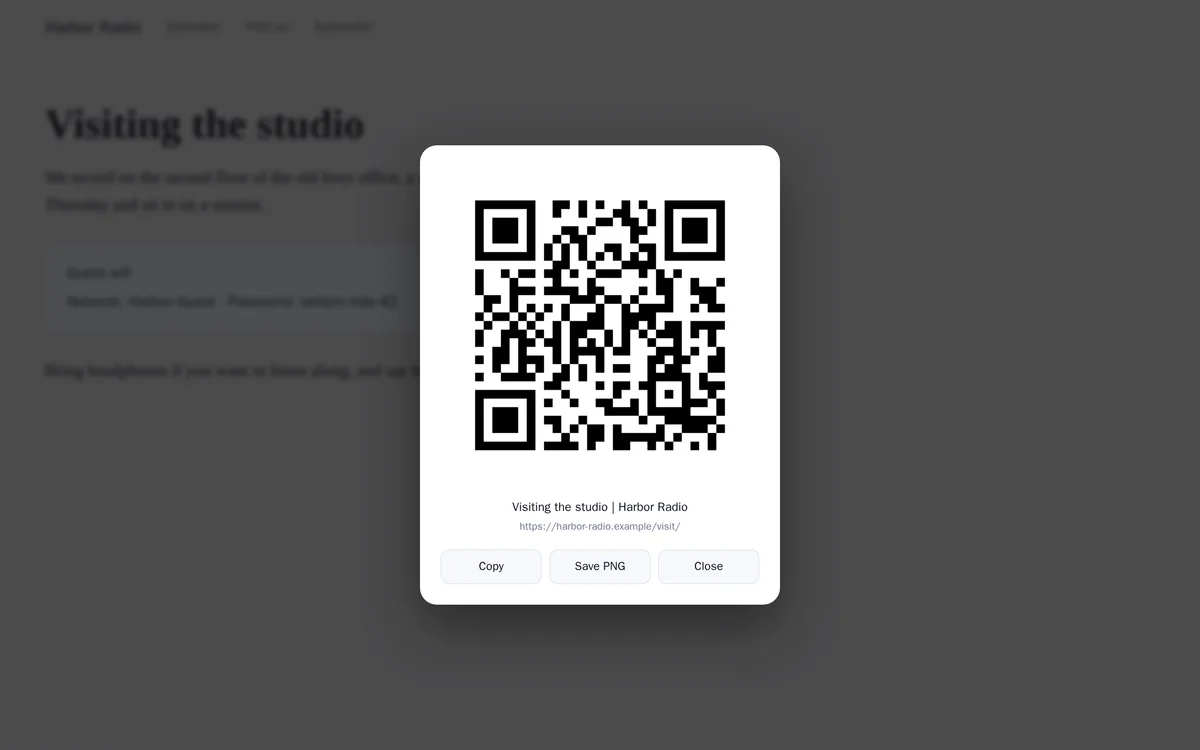
Or select some text first
Highlight any text, then press Q. The card says Selected text, and the code carries what you selected instead of the address.
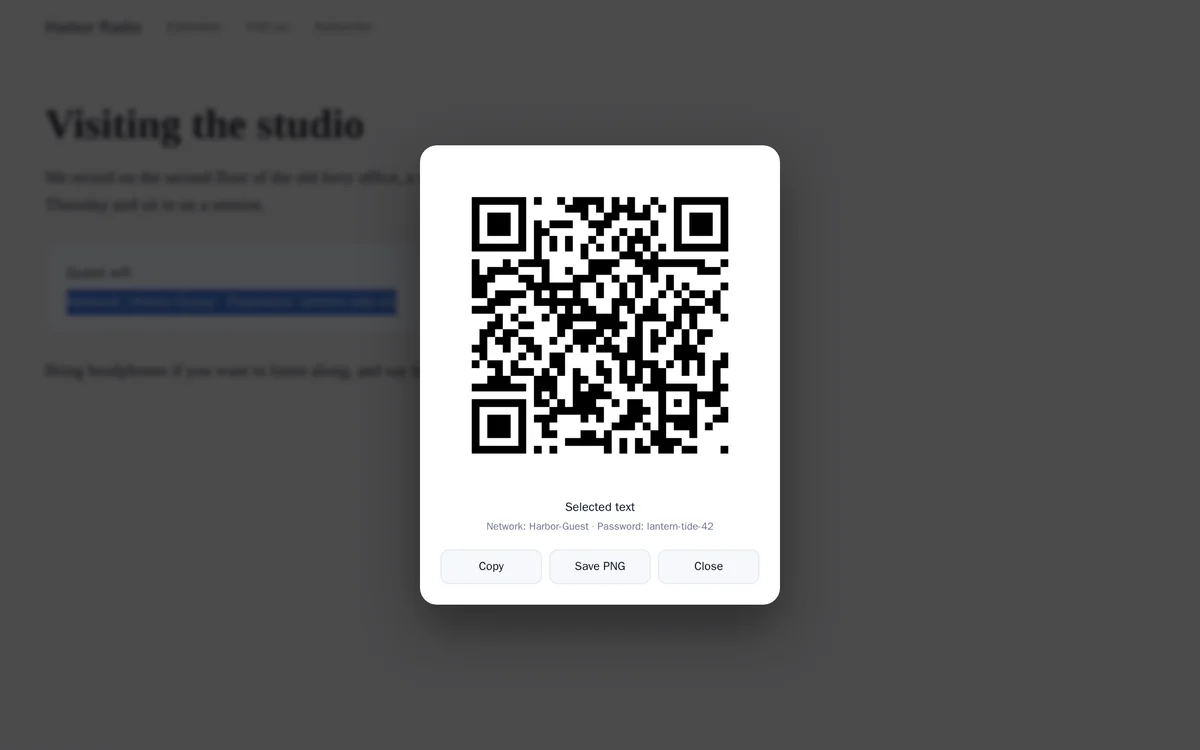
Scan it, copy it or save it
Point your phone's camera at the code; most phones read QR codes in the camera app with nothing extra. Copy puts the same address or text on your clipboard, and Save PNG downloads the code as an image you can print or send. Press Q again, Esc, or click outside the card to close it.
What it adds
1 shortcut for every site, exactly as below. You can change any of it after.
- Q
Show a QR code
Encodes the current page URL — or your current selection, if you have one. Copy, save as PNG, or press Esc to dismiss. Press Q again to toggle it off.
ShortcutRuns codeEvery site
The first time it runs, it loads a helper file from cdn.jsdelivr.net.
Show the code it runsHide the code it runs116 lines
Loading the code…
One-time setup: turn on “Allow user scripts”
This blueprint runs code, and Chrome keeps that behind a switch that starts off. Until you turn it on, the shortcut is saved but does nothing.
- Open
chrome://extensions. - Find BumbleTap and click Details.
- Turn on Allow user scripts.
On Chrome older than 138, turn on Developer mode (top right of that page) instead. Google’s announcement
Reinstalling the extension can turn it back off. If the shortcut ever stops working, check here first.
What it can’t do
It can't run on the browser's own pages, such as settings, the new tab page or the Chrome Web Store. No extension is allowed there.
A code holds about 2,300 characters at most. A very long selection won't fit: select less, or send the text another way.
The code is the page's address, not what you can see. A page behind a login, or one on your own computer such as
localhost, opens on your phone only if your phone can reach it too.A selected wifi password arrives on the phone as text. To make a code that joins the network when scanned, use the wifi mode of the free QR Code Generator.
Troubleshooting
- Pressing Q does nothing
- Check three things: you aren't typing in a text box (shortcuts wait while you type), the shortcut is on in BumbleTap, and Chrome's “Allow user scripts” switch is on, under BumbleTap's Details in
chrome://extensions. - My phone won't read the code
- Turn your screen brightness up, hold the phone far enough back that the whole code is in the frame, and keep it steady. A long address makes a denser code; zoom the page in with Ctrl and + to make it bigger.
- The code shows the wrong text
- If text was selected when you pressed Q, the code holds that text. Click somewhere empty to clear the selection and press Q again.
- Save PNG doesn't seem to do anything
- Check your browser's downloads: it may be asking where to save the file, or it saved it straight to your Downloads folder.
Common questions
Does it send the page's address anywhere?
No. The code is drawn in your browser. The first time it runs, it loads one helper file, a small QR library, from jsDelivr; after that nothing about the page leaves your computer.
Can I use a different key?
Yes. Once it's added it's an ordinary BumbleTap shortcut: change Q to any key or combination, or keep it off sites where Q already does something.
Does it work on every site?
On every ordinary web page, yes. The exceptions are the browser's own pages and the Chrome Web Store, where no extension can run.
Is there a way without installing anything?
Yes: the free QR Code Generator on this site makes the same kind of code in the browser, for links, wifi, email or SMS.
Adding it
Added next to yours, never over them.
BumbleTap adds it beside the shortcuts you already have. Nothing is replaced.
Click Add to BumbleTap
This page hands the blueprint to the extension in your browser.
Check it and approve
BumbleTap’s own popup lists every item. Nothing is added until you click Add.
Make it yours
Change keys, edit the code, or delete what you don’t use.
Blueprints go straight from this page to the extension. We don’t store what you add on our servers.
QR Code Generator
Need one code, right now, without installing anything? Make it in the browser — links, wifi, email or SMS, exported as PNG or SVG.
Keep browsing
More blueprints3
- Reading
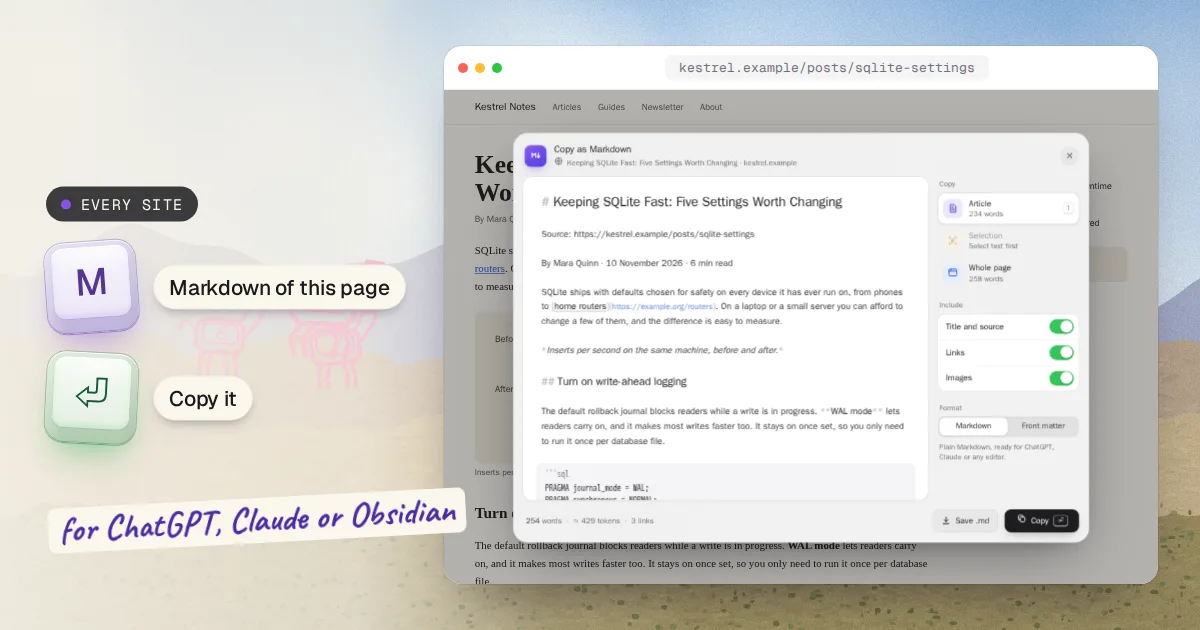
Copy Any Webpage as Markdown
Press M on any page, get its article as clean Markdown. Enter copies it.
Every site 1 shortcut
- Power
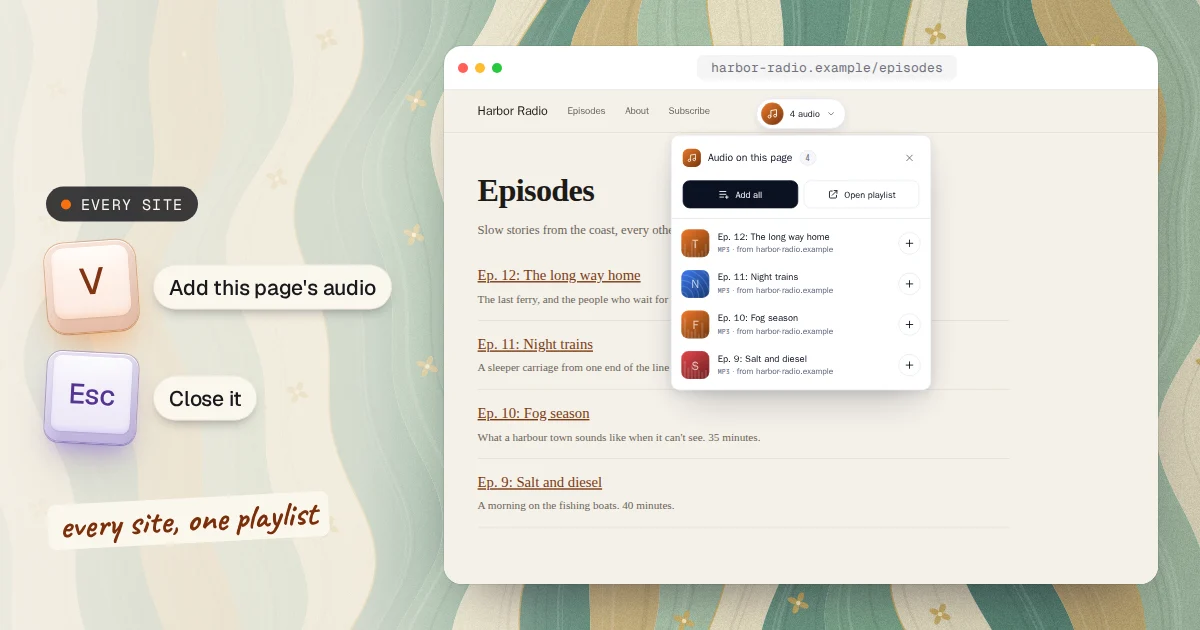
One Playlist for Audio From Every Site
Press V on any site, add its audio, and take the whole playlist to your phone with one scan.
Every site 1 shortcut
- Developer
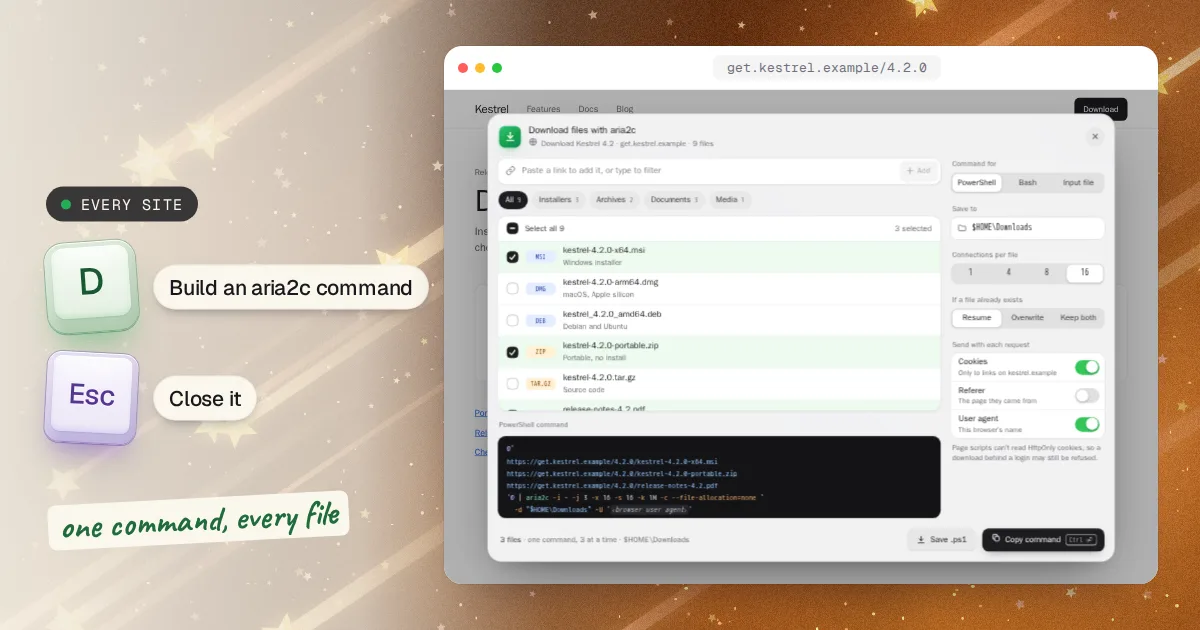
Download All Files From a Webpage with aria2c
Press D on any page, tick the files, get one aria2c command.
Every site 1 shortcut