BumbleTap
What it does
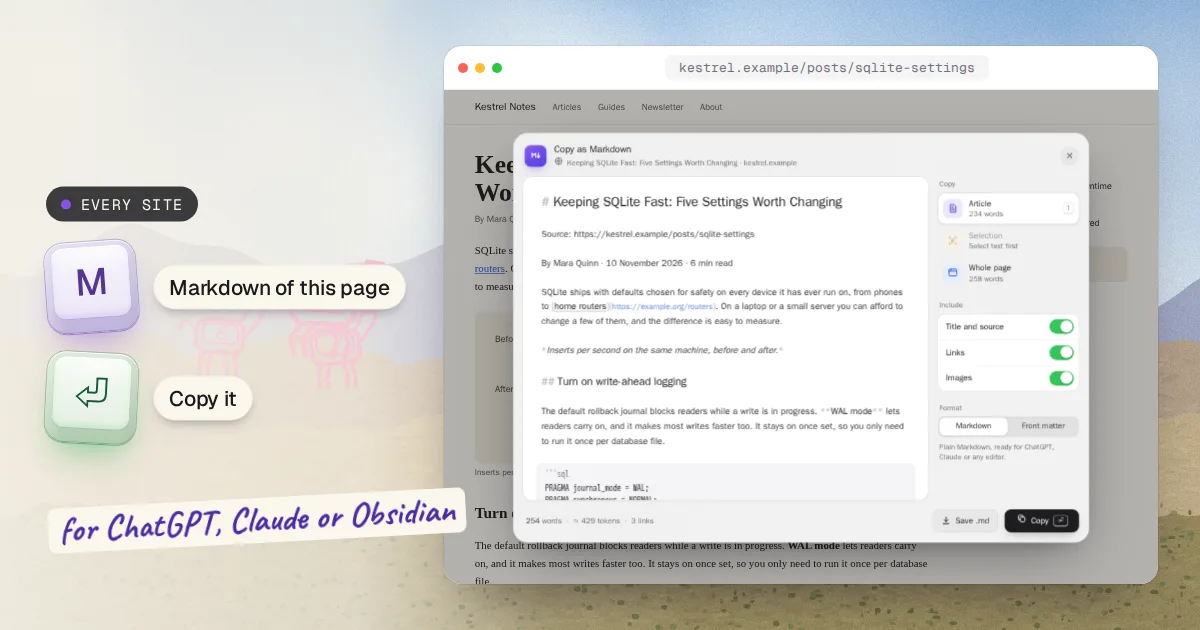
Copy any webpage as clean Markdown for ChatGPT, Claude, Obsidian or your notes. Press M and the article comes out without the menus, ads and sidebars, with its headings, links, images, code blocks and tables intact. Select text first to copy just that part, or take the whole page. Press Enter to copy it, or save it as a .md file. It's converted on the page, and nothing is sent anywhere.
- The article without menus, ads or sidebars: headings, code, tables, links and images intact
- Article, selection or whole page, with a title and source or Obsidian front matter
- Converted on the page: nothing is uploaded
When you’d use it
Give ChatGPT or Claude a whole article
Paste a long article, a docs page or a paper into a chat without the menus, cookie notice and related posts that come along when you copy from the page. The token count tells you roughly how much of the chat it will use.
Save pages into Obsidian or your notes
Front matter puts the title, source, author and dates at the top, the way Obsidian files notes, and Save .md downloads it as a file named after the page.
Quote documentation with the code intact
Copy a section of the docs or an answer with its code blocks, their languages and its tables still formatted, ready for a README, an issue or a wiki.
Step by step
Press M on the page
Press M anywhere on the page, as long as you aren't typing in a box. The window shows the page's article as Markdown, without the menus, sidebars and ads. Under each choice on the right is how many words it holds.
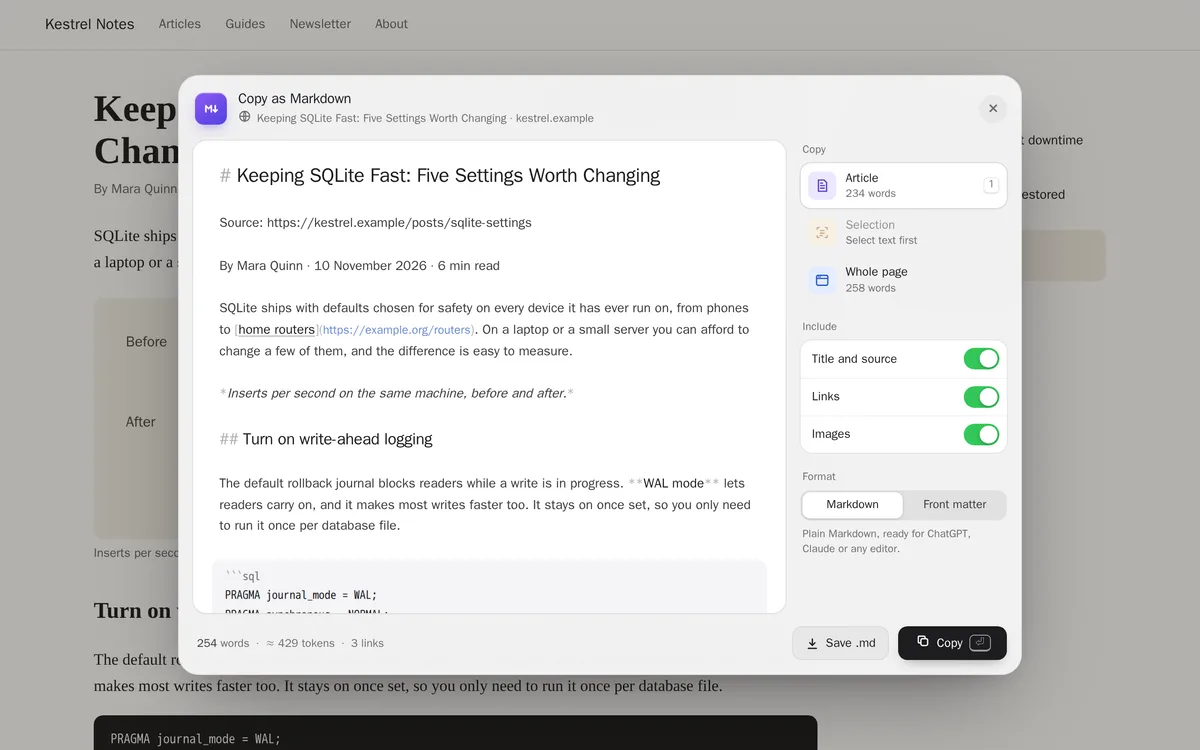
Choose what to copy
Article is the main text. Select something on the page before you press M and it opens on Selection, just that part. Whole page takes everything. Press 1, 2 or 3 to switch.
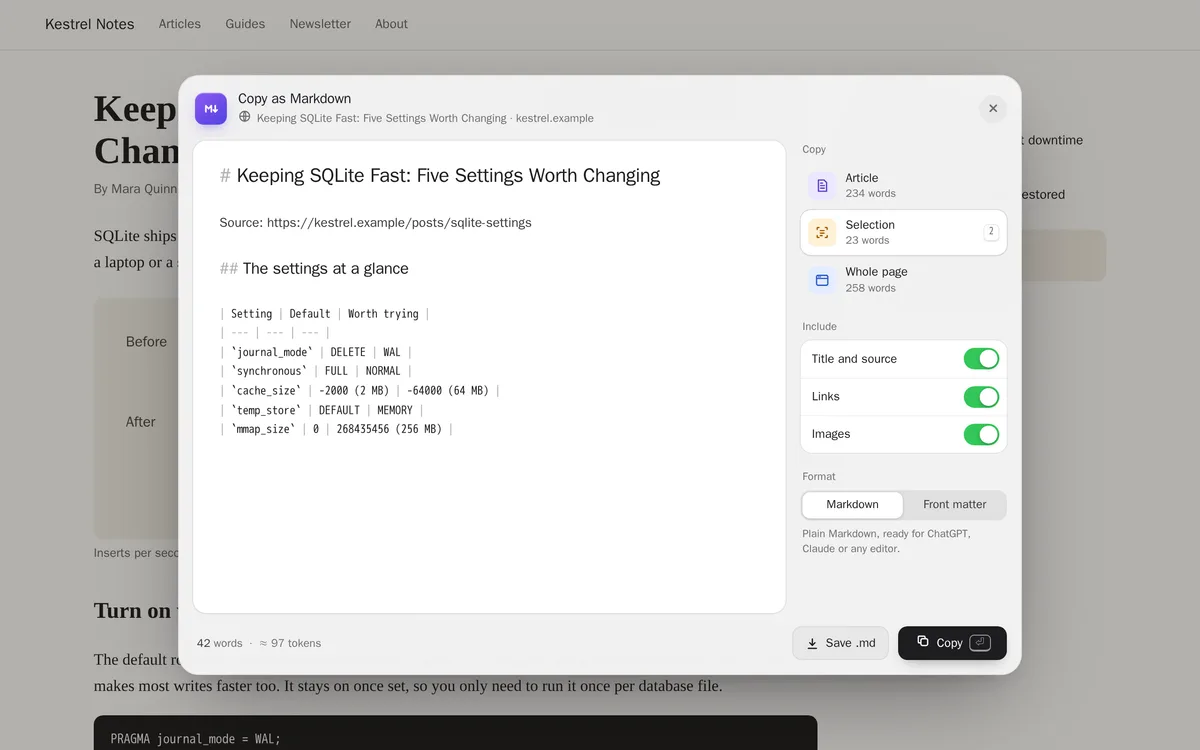
Choose the format, then copy
Title and source starts it with the page's title and link; Front matter writes them as YAML for Obsidian. Switch off Links or Images for a shorter prompt. Press Enter to copy it, or Save .md (Ctrl+S, or ⌘S on a Mac) for a file. The window closes and a note on the page confirms it.
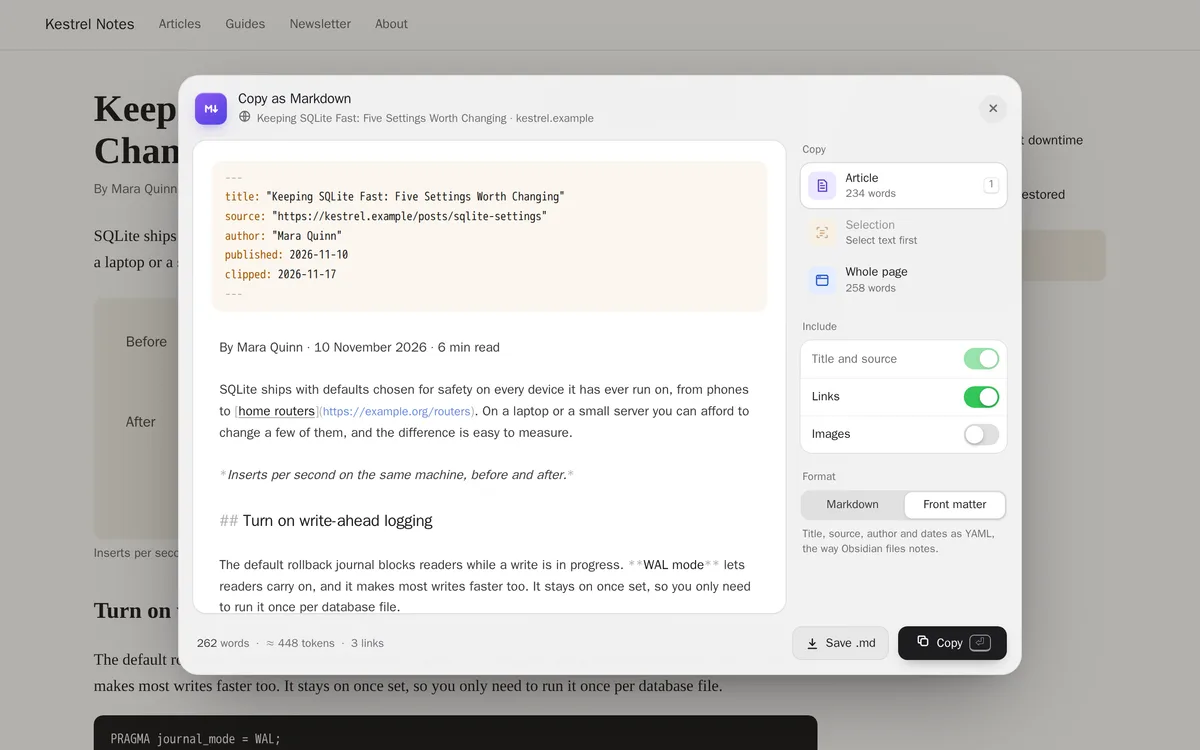
What it adds
1 shortcut for every site, exactly as below. You can change any of it after.
- M
Copy this page as Markdown
Shows the page's article as Markdown, or what you selected, or the whole page. Press Enter to copy it or Save .md for a file. Press M again, Esc, or click outside it to close.
ShortcutRuns codeEvery site
The first time it runs, it loads a helper file from cdn.jsdelivr.net.
Show the code it runsHide the code it runs859 lines
Loading the code…
One-time setup: turn on “Allow user scripts”
This blueprint runs code, and Chrome keeps that behind a switch that starts off. Until you turn it on, the shortcut is saved but does nothing.
- Open
chrome://extensions. - Find BumbleTap and click Details.
- Turn on Allow user scripts.
On Chrome older than 138, turn on Developer mode (top right of that page) instead. Google’s announcement
Reinstalling the extension can turn it back off. If the shortcut ever stops working, check here first.
What it can’t do
On question-and-answer and forum pages, Article picks the biggest block, often the top answer rather than the question. Use Whole page, or select the part you want.
On front pages and video pages, such as a news homepage or YouTube, Article finds only part of the page. Whole page takes everything.
It can't read what a page draws on a canvas, such as Google Docs or Figma, what's inside closed web components, or a PDF open in the browser's viewer.
Some formatting has no Markdown: underline, highlight, colours and fonts become plain text, and embedded videos become links to them.
The token count is an estimate, about four characters a token. Each chat counts a little differently.
Troubleshooting
- Pressing M does nothing
- Check that you aren't typing in a box, that the shortcut is on in BumbleTap, and that Chrome's “Allow user scripts” switch is on under BumbleTap's Details in
chrome://extensions. The first time, it needs to be online to load its helpers. - M does something else on this site
- Some sites use M themselves (YouTube mutes the video). Give this shortcut another key in BumbleTap, on that site or everywhere.
- The article is missing a part, or has something extra
- Article is a best guess at the main text. Select the part you want before pressing M, or switch to Whole page.
- It says “Couldn’t copy”
- A few sites block the clipboard. Use Save .md instead, or select the text in the preview and copy it.
- It's too long for my chat
- Switch off Links and Images, which can halve a page full of references, or select just the sections you need.
Common questions
Is anything uploaded?
No. The page is converted in your browser, on the page itself. The first time it runs it downloads three open-source helpers from jsDelivr: Mozilla's Readability, the engine behind Firefox's Reader View, and Turndown with its tables plugin. Nothing about the page goes with that request.
Can I change the key or what it starts with?
Yes. It's an ordinary BumbleTap shortcut, so it can have any key. The first lines of its code set how the window opens: title and source, links, images, and front matter.
What's the difference between Markdown and Front matter?
Both are Markdown. Front matter adds a YAML block at the top with the title, source, author and dates, which Obsidian and other note apps read as the note's properties.
Why does it count tokens?
Chat assistants measure what you paste in tokens, and each has a limit. The count tells you roughly whether a page will fit.
Adding it
Added next to yours, never over them.
BumbleTap adds it beside the shortcuts you already have. Nothing is replaced.
Click Add to BumbleTap
This page hands the blueprint to the extension in your browser.
Check it and approve
BumbleTap’s own popup lists every item. Nothing is added until you click Add.
Make it yours
Change keys, edit the code, or delete what you don’t use.
Blueprints go straight from this page to the extension. We don’t store what you add on our servers.
Keep browsing
More blueprints3
- Power
One Playlist for Audio From Every Site
Press V on any site, add its audio, and take the whole playlist to your phone with one scan.
Every site 1 shortcut
- Developer
Download All Files From a Webpage with aria2c
Press D on any page, tick the files, get one aria2c command.
Every site 1 shortcut
- Power