BumbleTap
What it does
Gather audio from different websites into one playlist, then send it to your phone with one scan. Press V on a page and every audio file on it is listed: podcast episodes, lectures, clips, even streams the site builds in code. Add one or all, and they join a playlist that follows you from site to site, so you stop opening each page to press play. When you head out, a QR code moves the whole playlist, and your place in it, to your phone.
- Audio from any site, in one playlist that follows you across sites
- One QR code moves the playlist and your place in it to your phone
- Skips tracks that can't play and says why; back 15, forward 30, sleep timer
When you’d use it
Podcasts that live on their own sites
Shows that publish episodes on their own pages rather than in your podcast app. Add this week's episodes from each site, and they play one after another in one place.
Lectures and lessons spread across platforms
A course's recordings on one site, a language lesson on another, a talk on a third. Line them up in the order you want to hear them and stop jumping between tabs.
Taking it with you
Built a playlist at your desk and need to leave? One QR code puts the whole playlist on your phone, starting at the track and the second you'd reached.
Step by step
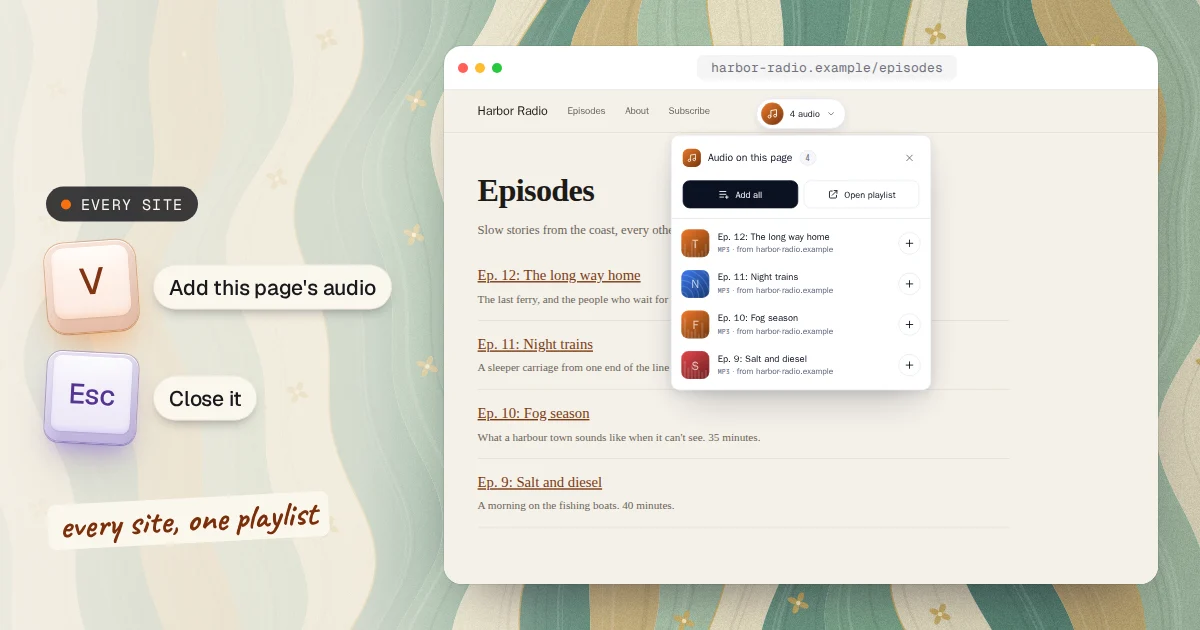
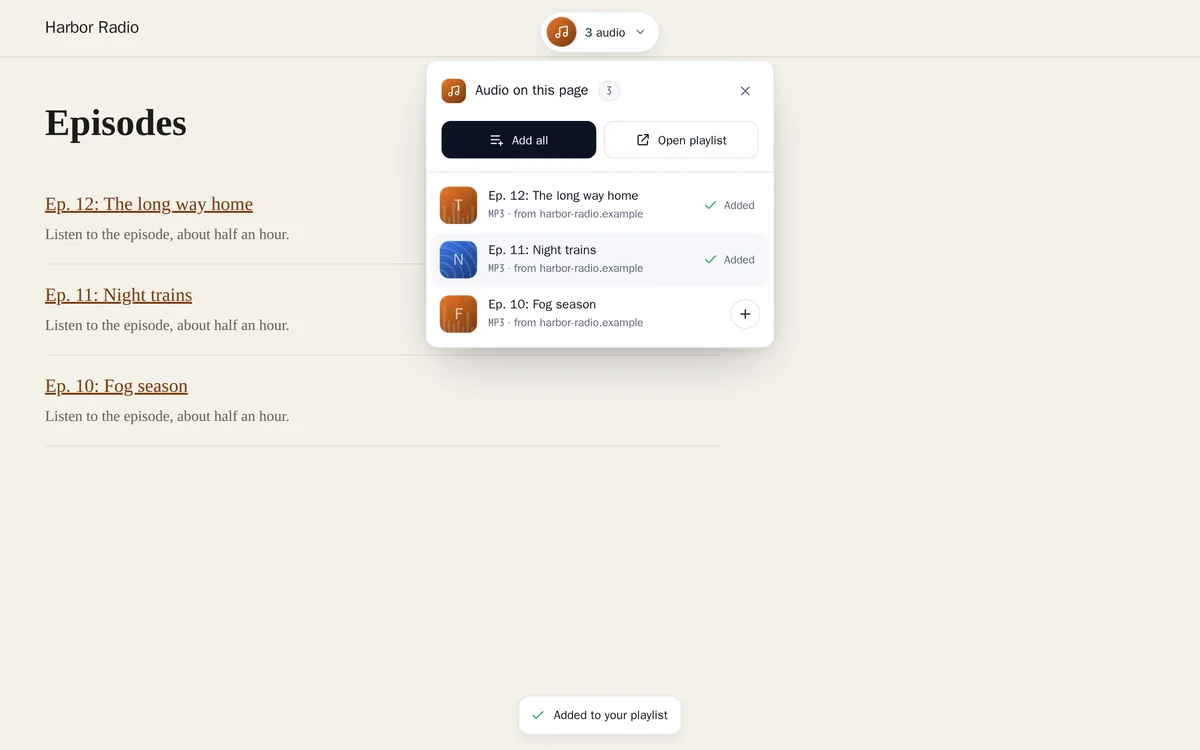
Press V on a page with audio
Press V and a panel drops down from the top of the page with every audio file it found, its title and the site it's on. Press + on one, or Add all.
Listen in your playlist window
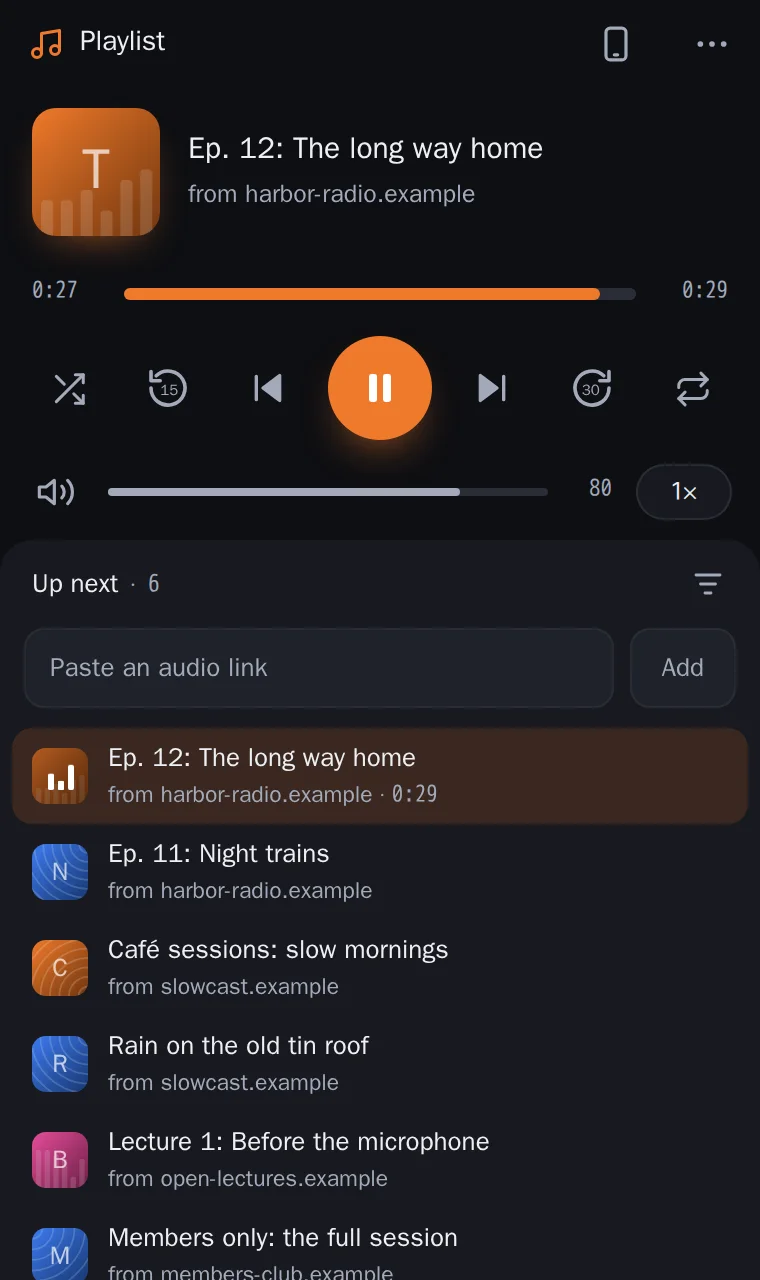
The first track you add opens your playlist in a small window. It keeps one playlist for every site, so tracks you add later from other sites join the same list. It has back 15 and forward 30 second buttons, speed, shuffle and repeat, and your keyboard's media keys work too.
Send it to your phone
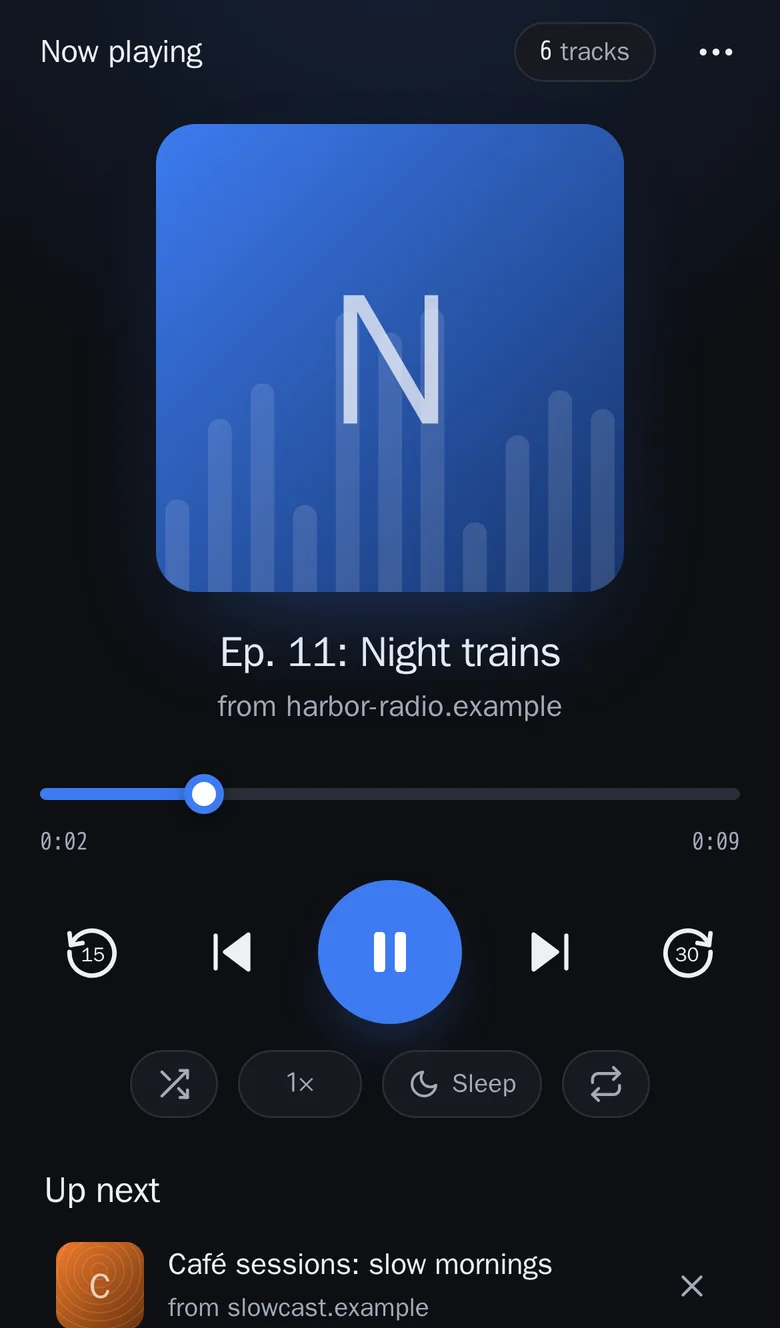
Press the phone icon in the playlist window and scan the code with your phone's camera. The playlist opens in your phone's browser at the track and second you'd reached. Tap Start listening once: phones need a tap before they play sound.
What it adds
1 shortcut for every site, exactly as below. You can change any of it after.
- V
List this page's audio and add it to your playlist
Opens a panel with every audio file on the page. Add one, or Add all, and it joins your playlist window, which keeps one playlist across every site. Send to phone puts the playlist on your phone with a QR code. Press V again or Esc to close.
ShortcutRuns codeEvery site
The first time it runs, it loads a helper file from umershahzeb02.github.io.
Show the code it runsHide the code it runs1494 lines
Loading the code…
One-time setup: turn on “Allow user scripts”
This blueprint runs code, and Chrome keeps that behind a switch that starts off. Until you turn it on, the shortcut is saved but does nothing.
- Open
chrome://extensions. - Find BumbleTap and click Details.
- Turn on Allow user scripts.
On Chrome older than 138, turn on Developer mode (top right of that page) instead. Google’s announcement
Reinstalling the extension can turn it back off. If the shortcut ever stops working, check here first.
What it can’t do
Your phone gets links to the audio, not the files. Audio that only plays on its own site, such as members-only episodes or links that expire, won't play on the phone; the player says why and skips it.
It can't play music from streaming services such as Spotify or Apple Music. Their audio is encrypted and plays only in their own apps.
Audio a site streams in small pieces, rather than as one file, may not be found, or may not play away from that site.
Your phone gets a copy. Changes you make on the phone don't go back to the playlist on your computer.
The V shortcut needs BumbleTap in Chrome or Firefox on a computer. On the phone you only open the link.
Troubleshooting
- “No audio found yet”
- Some players load their audio only when you press play. Start it on the page, then press V again.
- The playlist window doesn't open
- Your browser blocked the pop-up. Allow pop-ups for that site, then press Open playlist in the panel; the tracks you added are kept for it.
- A track says “Can’t play”
- It only plays on the site it came from, or its link has expired. Hover over the tag for the reason, press Retry, or open its page and play it there.
- The QR code says “Code 1 of 3”
- A long playlist needs more than one code. Scan them in turn; your phone shows how many it has and which are still to come.
- The phone shows a Start listening screen
- That's expected: phones won't play sound until you tap once. Tap Start listening and it carries on from where you were.
Common questions
Is my playlist uploaded anywhere?
No. It's saved in your browser, and the phone's copy travels inside the QR link itself. The playlist window and the phone player are web pages served from GitHub Pages, but no server stores your list.
Is the playlist still there after I close the window?
Yes. Open it again with Open playlist, or add another track, and it's all there, with your place in the current track.
Can I reorder or remove tracks?
Yes. Drag tracks to reorder them, hover over one to remove or download it, and filter a long list to find a track. The ⋯ menu exports the playlist as JSON or M3U, and imports one.
Which sites does it work on?
Any site that links to audio files or plays them in a standard audio player: podcast sites, radio archives, course platforms and sound libraries. Streaming services with encrypted audio are the exception.
Adding it
Added next to yours, never over them.
BumbleTap adds it beside the shortcuts you already have. Nothing is replaced.
Click Add to BumbleTap
This page hands the blueprint to the extension in your browser.
Check it and approve
BumbleTap’s own popup lists every item. Nothing is added until you click Add.
Make it yours
Change keys, edit the code, or delete what you don’t use.
Blueprints go straight from this page to the extension. We don’t store what you add on our servers.
Keep browsing
More blueprints3
- Reading
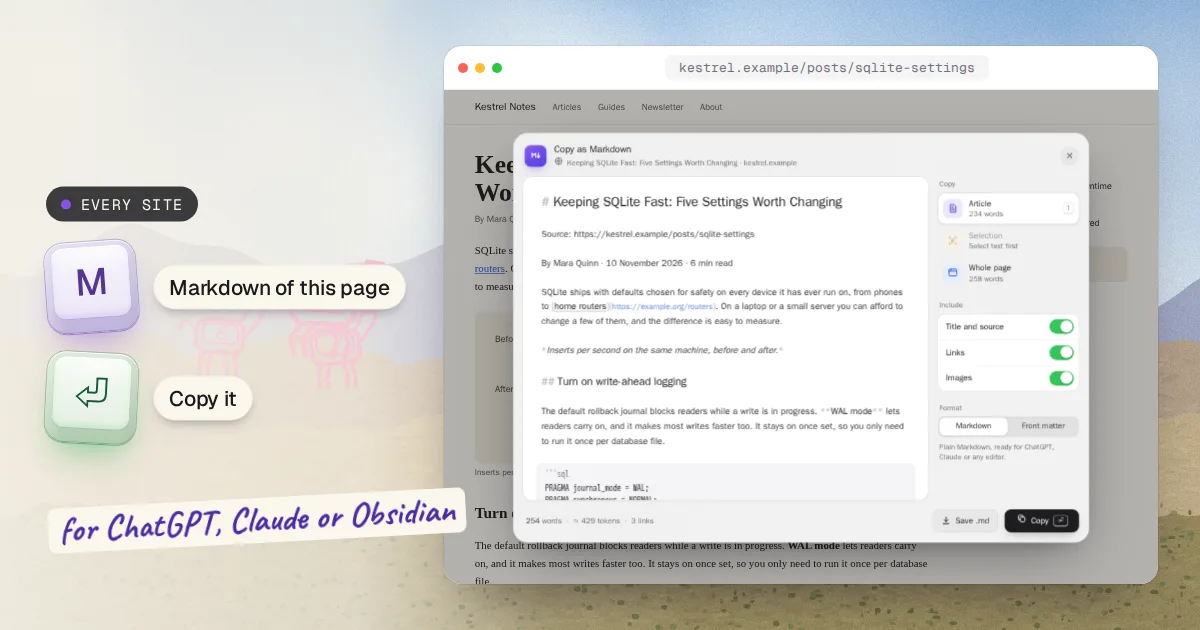
Copy Any Webpage as Markdown
Press M on any page, get its article as clean Markdown. Enter copies it.
Every site 1 shortcut
- Developer
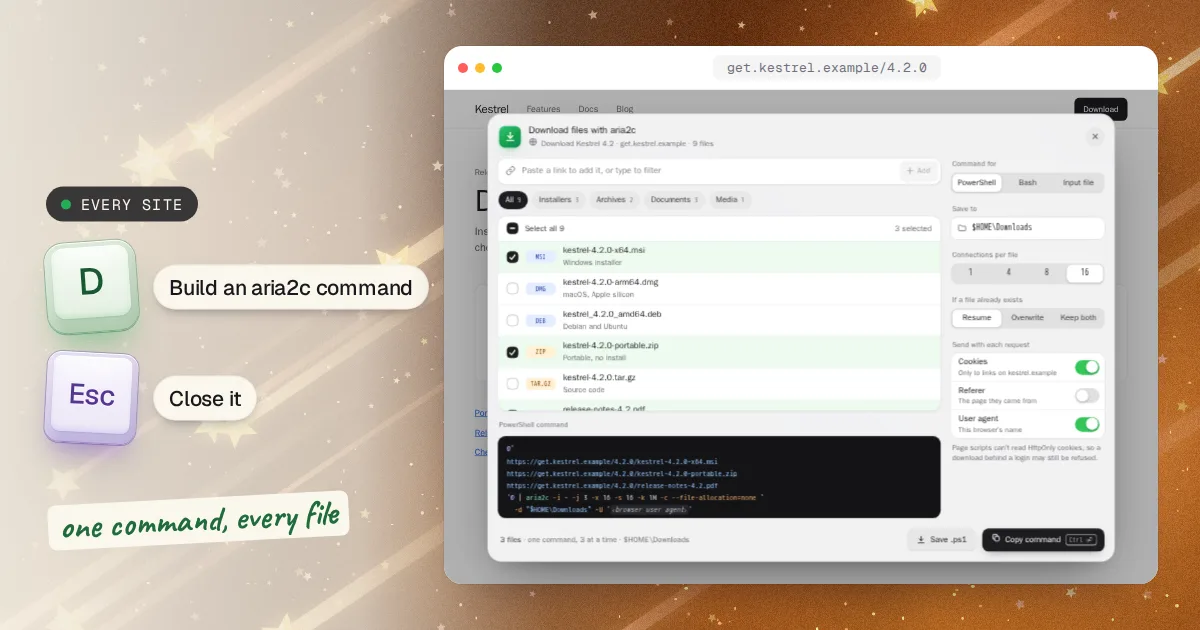
Download All Files From a Webpage with aria2c
Press D on any page, tick the files, get one aria2c command.
Every site 1 shortcut
- Power