BumbleTap
Tips
Run Code on Any Webpage with Keyboard Shortcuts
Bind a key to run your own JavaScript on any site. No sandbox to set up, it works on strict-CSP pages, and nothing ever leaves your browser.

The gist
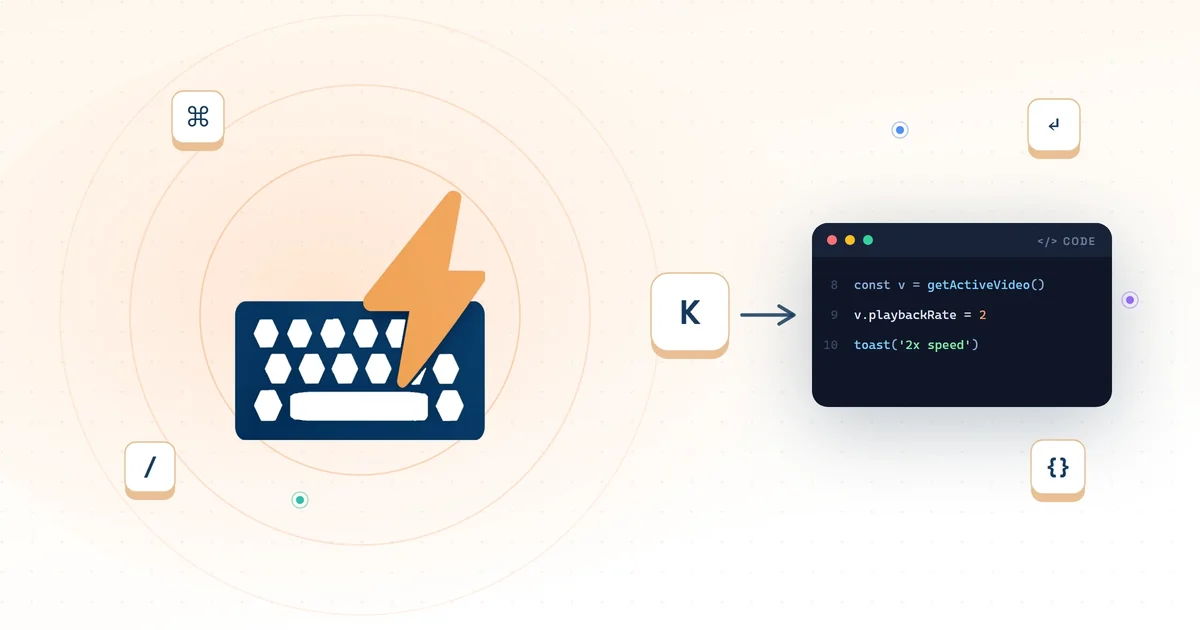
- Code is BumbleTap's fourth binding action, next to Click, Type Text, and Built-in. Bind a key, write JavaScript in the built-in editor, and it runs on whatever page you're looking at — three lines instead of another single-purpose extension.
- Your code is async and ships with helpers:
$/$$for the DOM,findByTextandwaitForElementfor resilience, media getters,toast, and a persistentstorage. Most one-off tasks are one short line. - It runs in Chrome's isolated USER_SCRIPT world — relaxed CSP so it works even on strict-CSP sites, no access to
chrome.*APIs, nothing leaves your browser. One-time "Allow user scripts" toggle to switch it on.
Show all 3 takeawaysShow less
On this page
Every page you open is already running code on your machine. The site's authors wrote JavaScript, shipped it, and your browser executes it the moment the tab loads. That's the whole deal of the web. The odd part is that the one script that never gets to run on the page is yours.
So you do what everyone does: install an extension for it. One to hide cookie banners, one to speed up video, one to auto-expand comments on that one forum. I wasn't going to install one per tweak, each with its own permissions prompt and its own way of breaking on some future Tuesday, all to do something you could write in three lines.
Take the smallest example I've got: getting a link off my laptop and onto my phone. The normal fix is a QR extension, or right-click → Create QR code for this page, every single time. I didn't want the ritual. So I wrote a small script that draws a QR of the current URL straight onto the page and bound it to Q. Press Q, a code appears, scan it, done — no toolbar icon, no menu, no third party. That was the moment I stopped reaching for the Chrome Web Store and started reaching for a keystroke.
BumbleTap, the free Chrome extension I build, has a fourth binding action called Code. You bind a key, write the three lines, and pressing the key runs them on whatever page you're looking at. No sandbox to spin up, no build step, no separate userscript manager. Install it, flip one switch the first time, and your own JavaScript becomes a keystroke on any site.
In Chrome 138, which rolled out in mid-2025, Google changed how every Chromium browser handles the userScripts API. Running an extension's own JavaScript is now gated behind a per-extension switch that ships off by default. Until you turn it on, a Code binding installs and saves fine but simply does nothing — you flip the switch once, per browser.
Chrome: open chrome://extensions, find BumbleTap, click Details, and turn on Allow user scripts. (On Chrome older than 138 there's no such toggle — enable Developer mode at the top-right of the extensions page instead.) Reference: Google's official announcement.
Microsoft Edge: open edge://extensions, open BumbleTap's Details, and turn on Allow user scripts — Edge is Chromium-based and carries the exact same toggle. Reference: Microsoft Edge extensions docs.
New installs default this off, and it can switch back off if you reinstall the extension — so if a Code binding ever goes silent, this is the first thing to check.
The fourth action type
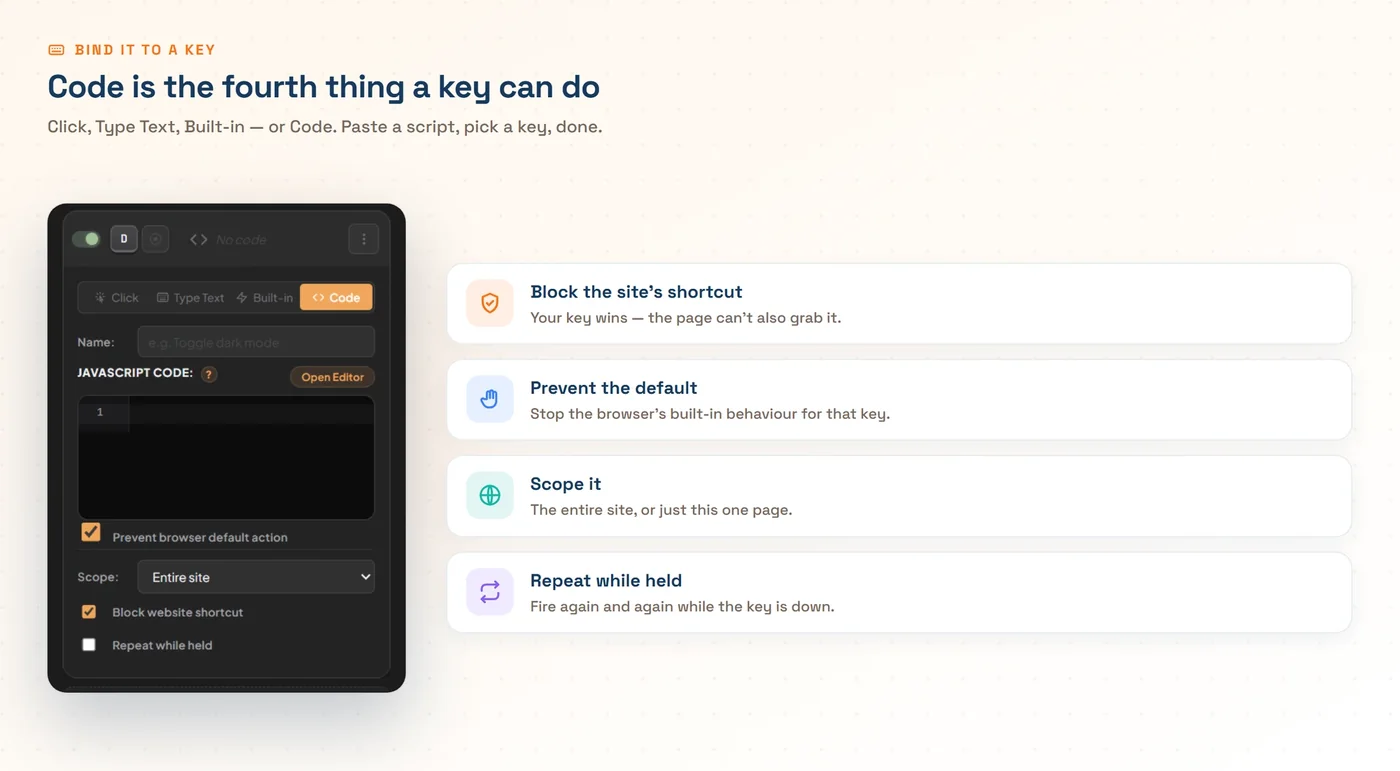
A BumbleTap binding does one of four things when you press its key: click an element, type text, fire a built-in action (scroll, media, navigation, zoom), or run Code. The first three cover most of what people bind a shortcut to. Code is for everything else, the tweak that isn't a button anyone made.
Setting one up is the same shape as any other binding:
- Open BumbleTap on the page you want, from the toolbar icon or the side panel (Ctrl+Shift+Y).
- Add a binding and record your key.
- Set the action to Code, and write your JavaScript.
Press the key, your code runs against the live page. That's the entire loop. The binding is scoped to the current site by default, so a letter you claim here stays free everywhere else.
The editor, and the helpers that come with it
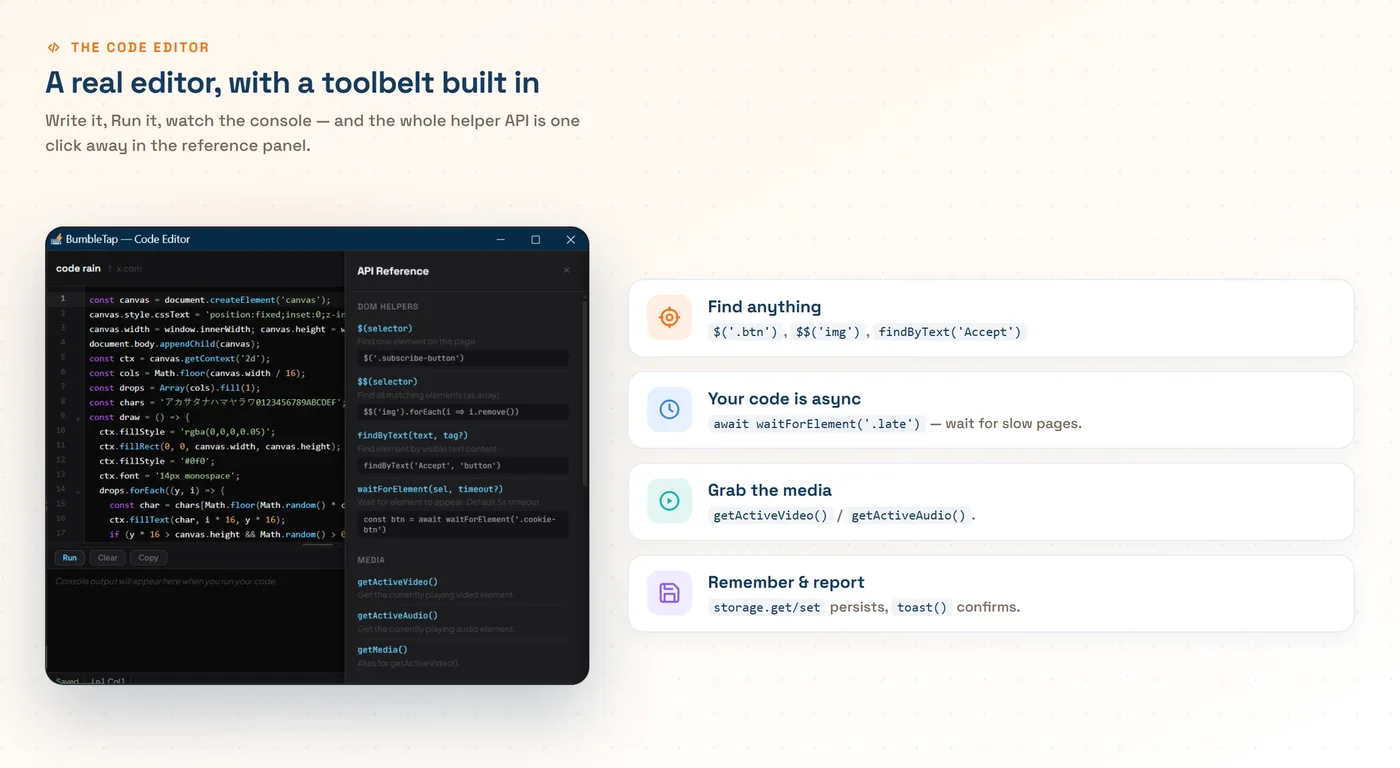
Choosing Code opens a real editor: CodeMirror, titled "BumbleTap — Code Editor." You get Run, Clear, and Copy buttons, a live console pane that greets you with "Console output will appear here when you run your code," and a saved indicator with line and column. A slide-out API Reference panel means you're not memorizing anything. Run executes right there, on the current page, so you can iterate before the key is ever involved. Here's a throwaway snippet you can paste in and Run just to watch it work. Matrix-style code rain:
// A fun one to paste and Run — "code rain".
const c = Object.assign(document.createElement('canvas'), { width: innerWidth, height: innerHeight });
c.style.cssText = 'position:fixed;inset:0;z-index:99999;pointer-events:none';
document.body.append(c);
const g = c.getContext('2d');
const drops = Array(Math.ceil(innerWidth / 14)).fill(0);
for (let frame = 0; frame < 300; frame++) {
  g.fillStyle = 'rgba(0,0,0,0.06)';
  g.fillRect(0, 0, c.width, c.height);
  g.fillStyle = '#0f0';
  g.font = '14px monospace';
  drops.forEach((y, i) => {
    g.fillText(String.fromCharCode(0x30a0 + Math.random() * 96), i * 14, y);
    drops[i] = y > c.height && Math.random() > 0.975 ? 0 : y + 14;
  });
  await sleep(45);
}
c.remove();
That snippet does two useful things beyond looking silly. It shows the code is async, which means top-level await just works, and you'll want that constantly on the modern web because nothing is ever on the page the instant you ask for it. And it uses sleep, one of a short list of helpers injected into scope for you. Not a framework. Just the handful of things you'd otherwise rewrite in every snippet.
The DOM helpers are the ones you'll reach for most:
$(sel)— one element, likequerySelectorwith less typing.$$(sel)— all matches, already a real array, so.forEach/.mapwork withoutArray.from.findByText(text, tag?)— find an element by its visible text (substring match).waitForElement(sel, timeout?)— resolves when the element shows up (default 5 seconds).
findByText and waitForElement are the two I'd argue for hardest, because they're the difference between a script you write once and a script you keep. document.querySelector('.sc-1x2y3z9') ties you to a class name a build tool generated and will regenerate on the next deploy; findByText('Load more', 'button') ties you to the word on the button, which designers change far less often than the markup around it. And waitForElement exists because half of all "why is my selector null" bugs are just timing. The element renders 300ms after your keypress, and a bare querySelector gives up instantly and returns nothing.
Past the DOM, there's media (getActiveVideo(), getActiveAudio(), and getMedia() as an alias for the video one), utilities (sleep(ms) and toast(message, type) where type is 'success', 'error', 'info', or 'warning'), and a persistent storage with get/set/remove. Then the context objects: binding and keyEvent tell you what triggered the run, and ctx bridges variables to other steps when the code is bound to a key or running as an auto-action step, which is why it isn't defined in the editor's Run preview. That's the whole public API. If a helper isn't on that list, it doesn't exist — you're in plain JavaScript, so reach for the platform.
A keystroke each: scripts worth binding
Here's the point where this stops being abstract. Every one of these is a complete Code binding. Paste it, hit Run to check it, bind a key.
Kill a cookie wall or a scroll-locking overlay:
$('.cookie-banner')?.remove();
document.body.style.overflow = '';
The overflow reset isn't decoration. These banners lock scrolling on <body> while they're up, and if you delete the banner without unlocking it you're left staring at a page you can't scroll.
Strip out every image, whether it's dead weight, lazy-load junk, or just a distraction:
$$('img').forEach(i => i.remove());Click a button by what it says, not where it sits in the tree:
findByText('Load more', 'button')?.click();That one survives redesigns the layout-based version can't. The button can move, get re-nested, or swap classes; as long as it still says "Load more," the binding finds it.
Wait for a late-rendered element, then act on it:
const btn = await waitForElement('.cookie-btn');
btn?.click();
Speed up whatever's playing, even on a player that never gave you a shortcut for it:
const v = getActiveVideo();
if (v) v.playbackRate = 2;
And a toggle that remembers itself across page loads, with a bit of feedback so you know it fired:
const el = $('#sidebar');
const hidden = storage.get('hideSidebar');
if (el) el.style.display = hidden ? '' : 'none';
storage.set('hideSidebar', !hidden);
toast(hidden ? 'Sidebar restored' : 'Sidebar hidden', 'info');
storage persists in your browser, so the next time you load the site your script can pick up where you left it.
That QR-on-Q from the top is still the binding I press most. But the useful part is what came after it: once the escape hatch exists, you stop tolerating the small stuff. Take a video player with no keyboard controls — one of those custom ones that eats the arrow keys. Nudging back ten seconds used to mean going for the mouse. Now two keys do it:
const v = getActiveVideo();
if (v) v.currentTime += 10;   // bind -= 10 to another key to jump back
The player never shipped that control, so I added it. That's the whole pattern, over and over.
BumbleTap binds your own JavaScript to a key on any site — strict-CSP pages included. No account, nothing leaves your browser, free.
The same code, without the keypress
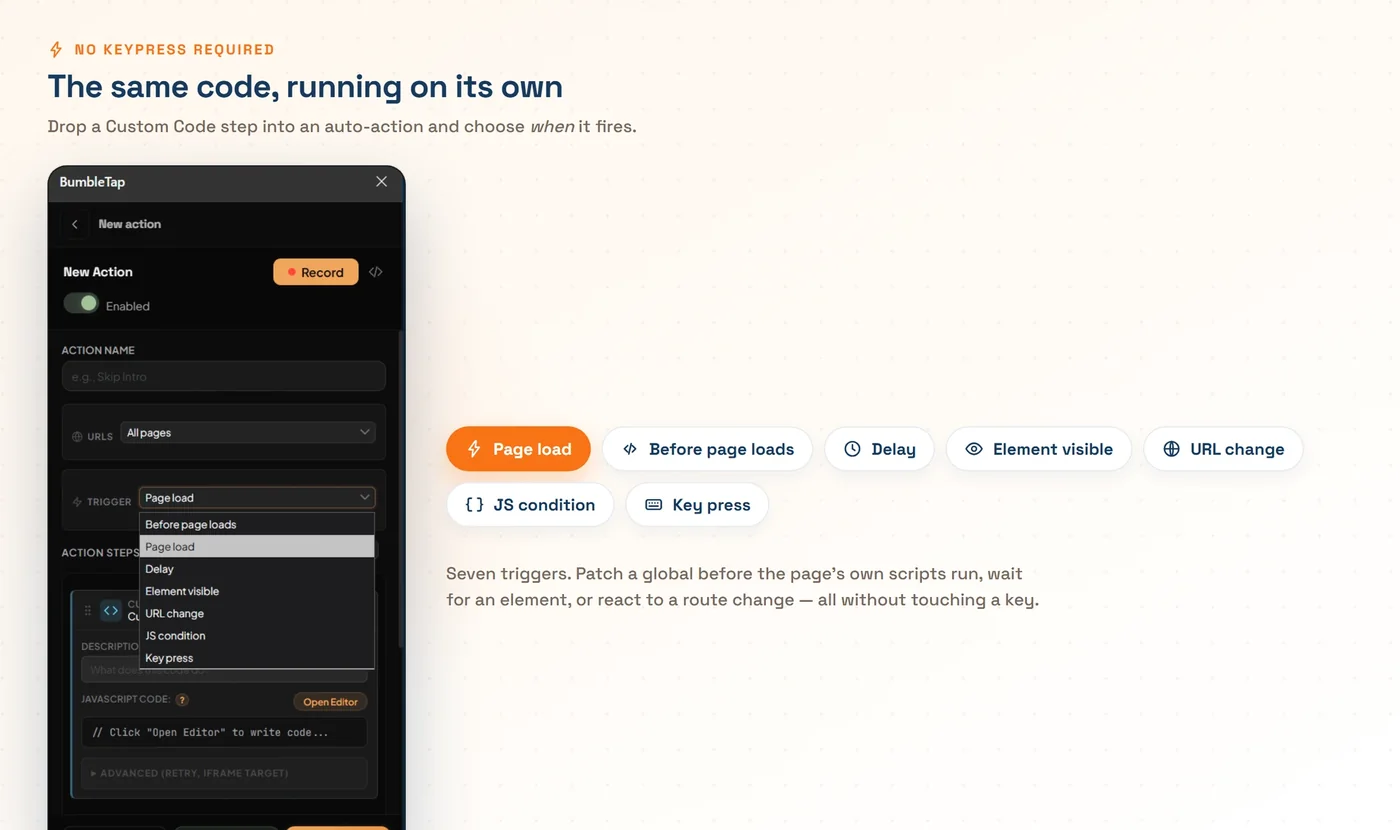
A keypress is the right trigger when you decide the moment to speed up this video, expand these threads, load more now. But some scripts should just happen, every time, before you'd think to press anything. For those, the exact same Custom Code step runs as an auto-action instead of a binding. Same editor, same helpers, same ctx on six of the seven triggers. The only thing that changes is what sets it off. The exception is Before page loads, covered below.
Auto-actions fire on a trigger:
- Before page loads — run before the page's own JavaScript does, to patch a global or defuse a script early. This one's special: it runs in the page's own MAIN world at document-start, so it's plain JavaScript with no injected helpers and no
ctx, and it's bound by the page's CSP. Reach for raw DOM here, not the helper API. - Page load — the DOM is ready.
- Delay — a set number of milliseconds after load.
- Element visible — when a selector appears on the page.
- URL change — for single-page apps that navigate without a full reload.
- JS condition — poll a predicate you write until it's true.
- Key press — back to a keypress, when you want the code as one step in a longer sequence.
The cookie-killer is the obvious promotion. Bound to a key, you press it once per page you land on. As an auto-action on Element visible watching .cookie-banner, you stop seeing the banner at all. It's removed the frame it appears, on every page, without your involvement. "Element visible" is the honest trigger here, because cookie walls show up late and on their own timeline; "Page load" would often fire before the banner exists.
Where your code actually runs
This is the part I'd want spelled out before I let any extension execute arbitrary JavaScript, so here it is plainly.
Your snippet runs in Chrome's USER_SCRIPT world, a sandbox that's separate from two things at once. It's separate from the page's own scripts, so the site can't read or tamper with your code and you're not colliding with its globals. And it's separate from the extension itself: code in that world cannot call any chrome.* API. A script you paste in can't read your other bindings, your storage, your tabs, or anything with extension privileges. It gets the page and the helpers. Nothing more.
That world also has its own, relaxed Content-Security-Policy, and that's the mechanism that lets your code run at all on locked-down sites. A page that sends script-src 'self' — GitHub, your bank, most serious apps — blocks inline and eval'd script in its own context. The USER_SCRIPT world isn't bound by the page's CSP, so your snippet executes where a normal injected <script> would be refused. It's also why a new Function-style execution under the hood doesn't trip the page's rules.
The cost of that power is the Allow user scripts toggle from the top of this post, which is exactly why Chrome makes you opt in per extension for the userScripts API. You do it once. None of this phones home. There's no account and no server, and your code and its storage stay in your browser.
The honest caveats
There are three, and none of them are dealbreakers, but you should hear them before you rely on this.
It needs that toggle, the one in the setup box at the very top. Without Allow user scripts switched on, a Code binding just does nothing. It's a one-time flip per browser, and worth re-checking after a reinstall.
It runs where you bind it. A Code binding is scoped like any other, per site by default. That's a feature, since your script doesn't roam onto pages you never meant it for. But it also means you set it up in each place you want it, or explicitly widen the scope.
It's real JavaScript, so you can break a page. $$('img').forEach(i => i.remove()) does exactly what it says, and if you aim it at the wrong node you can flatten a layout or throw in the console. The blast radius is one tab, though, and the fix is a reload; nothing you do carries into the page after a refresh unless you deliberately reached for storage. This is exactly what the Run button is for — try it before you bind it.
The web already runs everyone's code but yours. Closing that gap turns out to be three lines and a keystroke, and the useful ones disappear into muscle memory the same way any good shortcut does. You stop noticing the cookie wall, because it's gone a frame before you'd have seen it.
Frequently asked questions
Is it safe? Where does the code you write actually run?
chrome.* extension API, so a snippet can't read your other bindings, your storage, or your tabs. Nothing is sent anywhere; there's no account and no server.Do I need to know how to code to use this?
Does it work on sites with a strict Content-Security-Policy?
script-src 'self' blocks inline and eval'd script in its own context, but the USER_SCRIPT world isn't bound by the page's CSP, so your snippet runs where a normal injected <script> would be refused. GitHub, banking sites, most serious web apps — they work.Can the same code run automatically instead of on a keypress?
Can I break the page with it?
storage. Test with the editor's Run button before you bind the key.Is my code or my data sent anywhere?
storage stay in your browser — storage uses your browser's local storage for that site. There are no servers, no accounts, and no tracking. BumbleTap is free.Founder, BumbleTap
Interested in a little of everything. BumbleTap is what happened when he got tired of repeating the same browser clicks and built his own fix.