BumbleTap
Tips
How to Create Keyboard Shortcuts for Any Website
Bind any key to a click on any button on any website, with no code, using a free Chrome extension that keeps working after the site is redesigned.

The gist
- The buttons you click most have no keyboard shortcut and the browser won't add one. BumbleTap lets you bind any key to any element on any site — right-click the button, press a key, done in about ten seconds.
- Go past single-key clicks: modifier combos, chord sequences (press
gthenn), per-site or global scope, twenty built-in actions (scroll, media, navigation, zoom), or your own JavaScript on a keypress. - The shortcuts survive redesigns because BumbleTap re-finds the element at press time — voting across several stored representations and piercing shadow DOM — instead of memorizing one brittle CSS selector.
Show all 3 takeawaysShow less
On this page
- The ten-second version: right-click the button
- The editor version: for when right-click isn't enough
- Making the key yours: modifiers and chords
- Per-site by default, global when you mean it
- Skip the click entirely: the built-in actions
- When a click isn't enough: run your own JavaScript
- Why these shortcuts don't break when the site redesigns
- What I'd actually set up
- Caveats
There's a button somewhere in your day that has no keyboard shortcut and never will. The people who built the site didn't add one. The browser won't invent one for you. So you keep dragging the pointer to the same small rectangle, forty times a day, for as long as you use the thing — a "Load more," a "Mark as read," a theater-mode toggle, a "Skip" that shows up three seconds into every video.
The fix isn't to wait for the site to add a shortcut. It's to bolt one on yourself, in about ten seconds, and have it keep working after the site ships a redesign — the part most "custom shortcut" tools quietly get wrong.
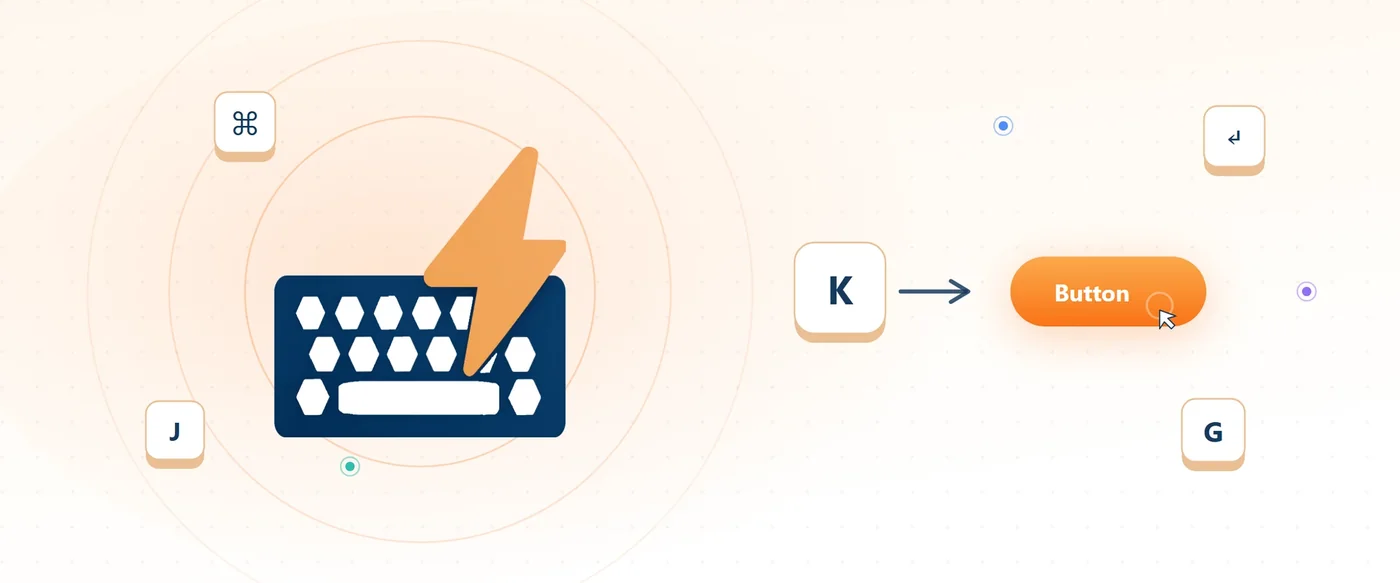
For me it started with manhwa. I'd be reading late into the night, finish a page, and reach for the mouse to click "Next" — again, and again, the same small click at the bottom of every panel. One evening it struck me that the click was the only thing standing between me and the next page, and that a single keypress could stand in for it: press a key, the "Next" button clicks, the story moves on without my hand ever leaving the keyboard. That one shortcut — a key that clicks "Next" — is the whole seed BumbleTap grew from. Everything since has been the same small idea aimed at bigger buttons.
The tool for the rest of this post is BumbleTap, a free Chrome extension I build. Install it, then come back — everything below works on any site you're already logged into, and none of it needs you to write a selector by hand.
The ten-second version: right-click the button
You don't open a settings page. You go straight to the button you're annoyed at.
- Right-click the button on the page.
- In the context menu, open BumbleTap → Add binding.
- A small key recorder pops up. Press the key you want — a letter, or a combo like Ctrl+Shift+K.
- If that key is already bound in BumbleTap on this site, the recorder tells you before you commit. Accept, and you're done.
That's the whole loop. Press the key, the button clicks. The binding is scoped to this site by default, so the letter you just claimed on one site is still free everywhere else.
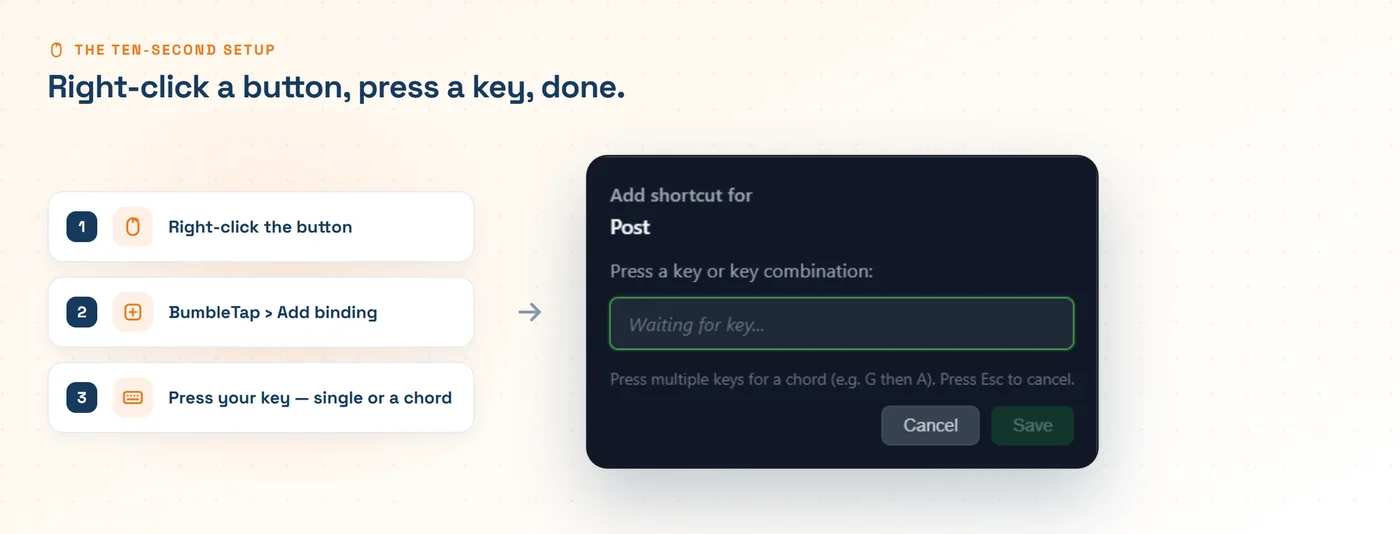
The reason right-click is the fast path and not a gimmick: the hard part of a shortcut like this was never the key. It's telling the computer which element you mean. Right-clicking hands the extension the exact node you pointed at, so there's nothing to describe, search for, or guess. You skip the selector entirely.
The editor version: for when right-click isn't enough
Right-click covers the common case. For everything else there's the editor: the popup you get from the toolbar icon, or the side panel (Ctrl+Shift+Y).
Open it on the site you want, add a key binding, and record your key the same way. Then pick what the key does. For clicking a button, choose Click Element, hit the crosshair (the element picker), and click your target on the page. BumbleTap generates the selector for you. If several things on the page match, you can name the element and set a selector index to say "the third one."
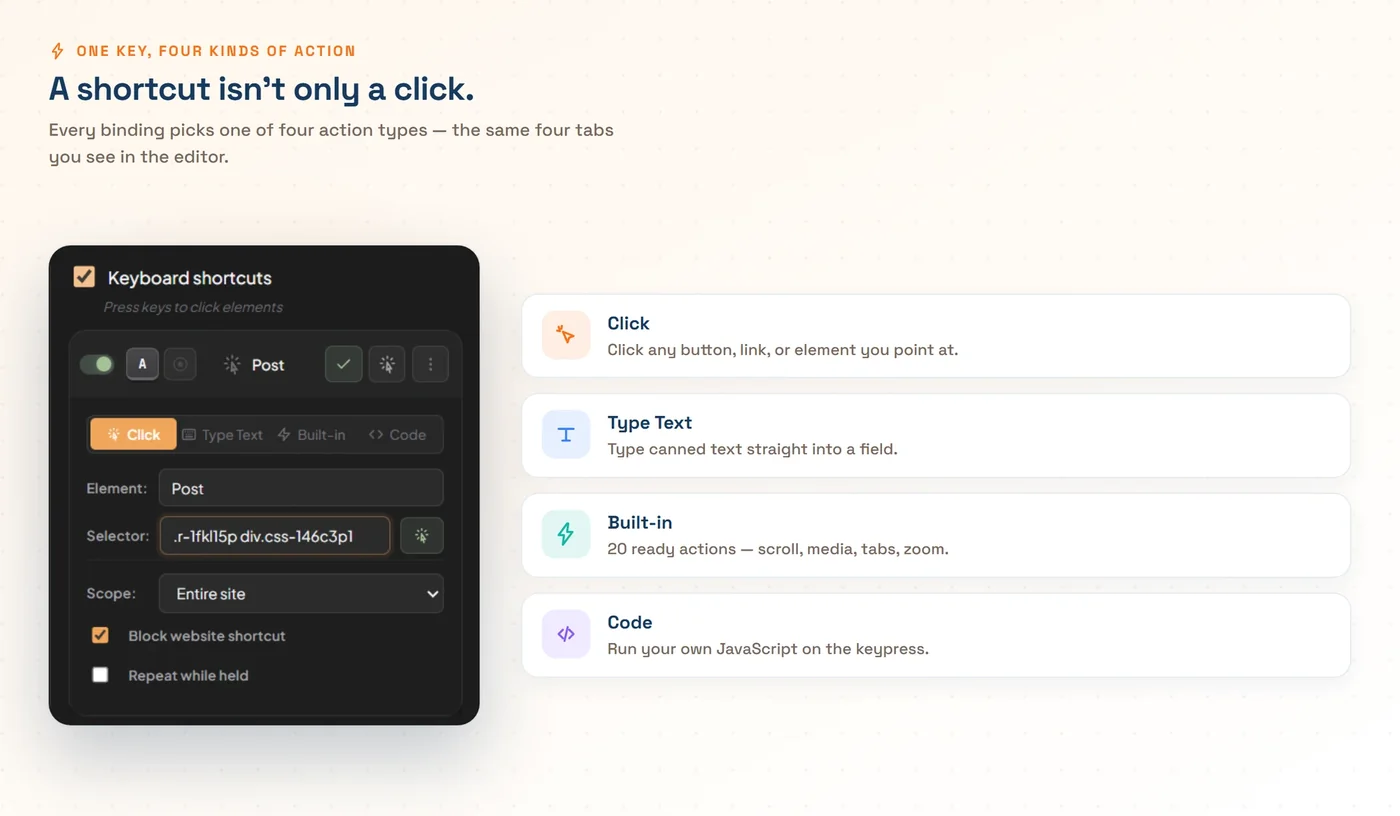
Reach for the editor over right-click when you want anything richer than "click this here": a chord instead of a single key, a built-in action instead of a click, a global binding, a URL scope, or just to see and reorganize the shortcuts you've already made. Right-click is for capture. The editor is for craft.
Making the key yours: modifiers and chords
A binding doesn't have to be one key. You've got three shapes, and they're not interchangeable. A single key like j is fast, but you only have so many letters, and plenty of sites already spend theirs on their own shortcuts. A modifier combo like Ctrl+Shift+K is safe from accidental firing, at the cost of a three-finger stretch. A chord sequence (press g, then n) is two ordinary keys in order, within a short window.
Chords are the one people underuse, and they're the reason you can have a hundred shortcuts without running out of keys. g n for "go next," g t for "go to top," g b for "go to bottom" — they read like little sentences, so you remember them without a cheat sheet. BumbleTap gives you a configurable chord timeout (200–3000ms, the gap it waits between keys) and an optional on-screen overlay that shows the chord in progress so you're never guessing whether it registered the first key. And for the keys where holding makes sense — scroll, seek — repeat-on-hold works.
Mine all hang off g for "go": g t jumps to the top, g b to the bottom, and g n means "next" — next episode, next email, next PR, whatever "next" happens to be on the site I'm on. They cost nothing to remember because they read like the thing they do, and because the leader is always g, my hands stopped thinking about it months ago.
Per-site by default, global when you mean it
Every binding you make is scoped to the site you made it on. Your YouTube j/k don't leak into Gmail, and the same letter can mean completely different things on two different sites. That's the default for a reason: single letters are scarce, and a letter that means "next episode" on one site would trample the shortcut that site already owns: c composes a message in Gmail, j and k walk you through the inbox, and plenty of apps claim bare letters the same way.
When you genuinely want a key everywhere (a "scroll to top," say), flip the binding to global. Global bindings run on every site, and you can narrow them with a URL pattern (*/watch/*) or a full regex, and exclude specific sites you don't want them on. If a global binding and a site binding both claim the same key, the site binding wins. Specific beats general, which is almost always what you want.
Skip the click entirely: the built-in actions
Here's a thing that took me too long to internalize: a lot of the "buttons" you wish had shortcuts aren't really buttons. What you actually want is scroll to the bottom, or play/pause, or go back. There's no element to point at, because the action is the target.
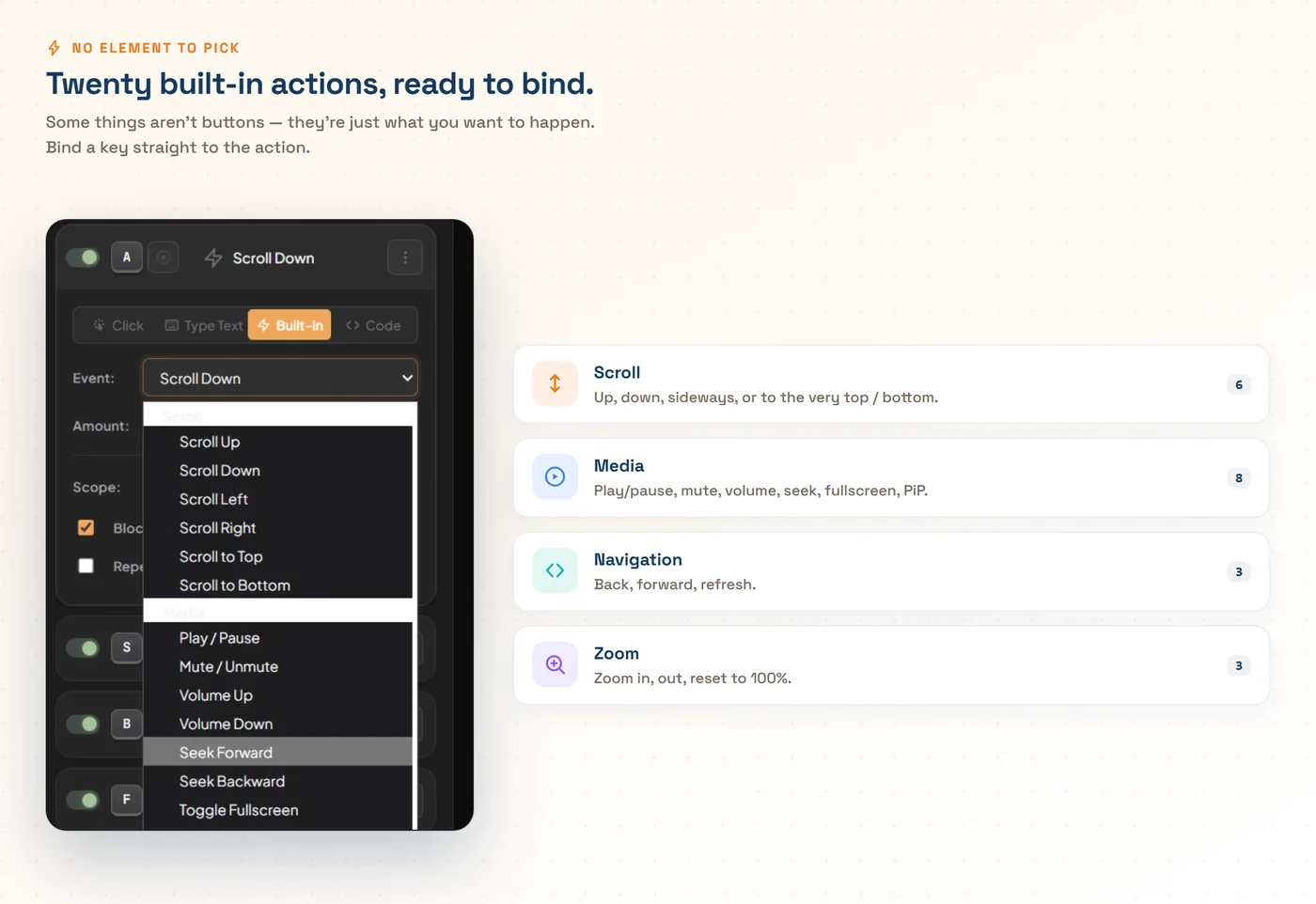
So BumbleTap ships twenty built-in actions you can bind a key to without picking anything on the page:
- Scroll: up, down, left, right, or straight to the top or bottom, by a small/medium/large nudge, a full viewport, or an exact pixel or percentage amount.
- Media: play/pause, mute, volume up/down, seek forward/back (5s, 10s, 30s, or custom), fullscreen, picture-in-picture. It auto-detects the active video or audio element, so it works on players that never exposed a shortcut for it.
- Navigation: back, forward, refresh.
- Zoom: in, out, reset to 100%.
Because none of these depend on a selector, they can't break when a site changes its markup. There's nothing to re-find. k means play/pause because you said so, not because it located a play button.
BumbleTap binds any key to any element — or any of 20-plus built-in actions — on any site. No account, nothing leaves your browser, free.
When a click isn't enough: run your own JavaScript
Sometimes the action you want doesn't exist as one button. You want to cycle playback speed through 1x → 1.5x → 2x, or click every "Load more" until they run out, or expand all the collapsed threads at once. For that, set a binding's action to Custom Code and write plain JavaScript that runs against the live page on each keypress.
It's real JavaScript with a few helpers baked in — $ and $$ for querySelector/querySelectorAll, waitForElement, getActiveVideo, toast for a quick on-page notification. Here's a complete binding that toggles the current video's speed (Chrome MV3, BumbleTap's custom-code action):
// Custom Code action — bound to a key of your choice.
// Cycle the active video's speed: 1x → 1.5x → 2x → back to 1x.
const video = getActiveVideo();
if (video) {
  const next = { 1: 1.5, 1.5: 2, 2: 1 }[video.playbackRate] ?? 1;
  video.playbackRate = next;
  toast(`Speed: ${next}x`, "success");
}
getActiveVideo() finds whatever's playing, so this works on a player that never gave you a speed shortcut — most of them. There's a one-time cost: custom code runs in an isolated sandbox that Chrome gates behind a User Scripts toggle, so the first time you use it you'll flip one switch in chrome://extensions (BumbleTap → Details → allow user scripts) and reload. After that it's yours.
The one I'd miss most is a single key that clicks every "Load more" until there are none left — about five lines built on waitForElement, bound to l. No built-in click could do it, because it's not one click; it's "keep clicking this until it stops appearing." On a long thread or a search page it turns a minute of click-wait-click into one press and a sip of coffee.
Why these shortcuts don't break when the site redesigns
This is the part that separates a shortcut you keep from one you delete in a month.
Most tools in this space save a single CSS selector when you pick an element — something like div.sc-1x2y3z > button:nth-child(3). It works the day you make it. Then one of three things happens. The site ships a redesign and the class names change. It's a single-page app, so the DOM gets torn down and rebuilt on every navigation with slightly different structure. Or the same visual button exists twice in the DOM (one hidden, one live) and your nth-child guess starts hitting the wrong one. In every case the selector is a seat number for a theater that keeps re-seating everyone.
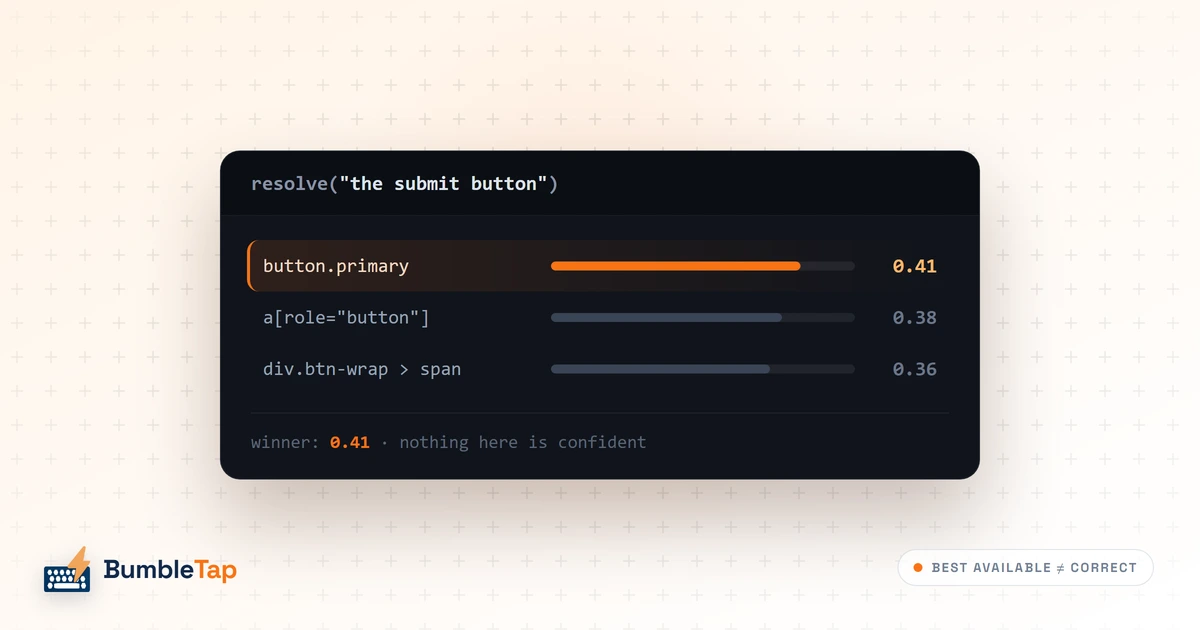
BumbleTap doesn't store one selector and hope. When you pick an element, it captures several independent representations of it, and at press time it re-finds the element by having those representations vote. It also pierces shadow DOM (where a lot of components hide) and checks that the winning candidate is actually visible and clickable before it acts. A class-name change knocks out one signal; the others still point at the right button, so the binding holds. It's closer to recognizing a face than memorizing a seat number: change the haircut and you're still recognized.
The case that sold me on it was TikTok's like button. In the feed it's one element; tap into a video and TikTok swaps to a portrait layout where the like button is a different node in a different place. A saved selector clicks empty space the moment that swap happens. Re-finding the element by vote clicks the right heart in both layouts, without me touching the binding.
I'll be straight about the trade-off, because there is one. If you're binding to a site that never changes — an internal tool, your own app, a page with stable IDs — a plain one-line selector you control is simpler and more predictable than any voting machinery, and you should just use that. The resilience matters precisely because you don't control other people's sites, and they redesign on their schedule, not yours. When you own the DOM, the clever part is overkill. When you don't, it's the whole point.
And when a button genuinely disappears (removed, not just moved), no resolver can conjure it back. BumbleTap's command palette dims any binding whose target is missing on the current page, so you can spot a broken one at a glance instead of discovering it the next time you mash the key.
What I'd actually set up
- Use right-click for one-offs. For any button you click a lot, right-click → Add binding → a single letter. Don't open the editor, don't overthink it. Most of my bindings started this way.
- Move to chords once you have more than a handful. Pick one leader key that means "go" (
gworks) sog n,g t,g bread as phrases. You'll stop needing to remember them. - Stay per-site unless you truly mean everywhere. A global binding on a bare letter will stomp on whatever single-key shortcut each site already defines for that letter: your global
cfighting Gmail's "compose," and so on down the line. Reserve global for modifier combos or actions like scroll-to-top that are safe anywhere. - Reach for a built-in action before you pick an element. If what you want is scroll, play/pause, back, or zoom, there's no selector to create and nothing that can break. Bind the action directly.
- Save custom JS for what no button exposes: speed toggles, bulk clicks, expand-all. Enable User Scripts once, and treat it as the escape hatch, not the default.
Caveats
- A few keys are the browser's, not yours. Chrome handles Ctrl+T, Ctrl+W, Ctrl+N, Ctrl+Tab and friends before the page ever sees them, so no extension's page script can rebind those. You can bind almost anything else, and BumbleTap helps you steer clear of collisions with two different checks. The right-click recorder flags a key only if it's already bound in BumbleTap on this site, nothing more. The editor's key-recording modal goes further: it checks your key against a built-in list of about fifty common browser shortcuts (new/close/reopen tab, tab-switching with Ctrl+1–9, address bar, refresh, find, devtools, print, save, zoom, back/forward) plus the usual web shortcuts (Ctrl+Z/Y/A/C/V/X, Escape, Space,
/,?). Both kinds of warning are advisory, not blocking (you can bind over them), and they only fire for single-key combos; a chord sequence is assumed safe and skipped. - Bare letters mostly don't fight with typing. A single-letter binding won't fire while you're typing into a normal field. BumbleTap suppresses bare-letter (and chord) bindings automatically whenever focus is in an editable element, detecting
<input>,<textarea>,contentEditable, androle="textbox", including editors buried in shadow DOM. The only residual risk is an exotic custom editor that presents as none of those, and that's rare enough you'll mostly meet it if you go looking. - Custom code needs a one-time toggle. The User Scripts switch in
chrome://extensionshas to be on. If your custom-code bindings ever go quiet, that switch is the first thing to check. - It's a Chrome extension. BumbleTap is published on the Chrome Web Store, and installable from there on other Chromium browsers like Edge and Brave. It's built on Chrome's Manifest V3 (including Chrome-specific
side_panelanduserScriptsAPIs), so it won't run on Firefox as-is.
The buttons aren't going to grow shortcuts on their own. The good news is that giving them one is a ten-second right-click, and the ones you set up well you'll forget you added — they'll just feel like the shortcut the site should have shipped.
Frequently asked questions
How do I add a keyboard shortcut to a button that doesn't have one?
Will the shortcut break when the website updates its design?
Are the shortcuts global or per-site?
Can I use key combos or sequences, not just single keys?
g then n. Chords give you a huge namespace of memorable shortcuts without colliding with the letters you type.Can a shortcut do something other than click, like scroll or play a video?
Is my data private? Do I need an account?
Founder, BumbleTap
Interested in a little of everything. BumbleTap is what happened when he got tired of repeating the same browser clicks and built his own fix.