Create QR Code for Any Page
Press Q, scan with your phone. No app, no retyping.
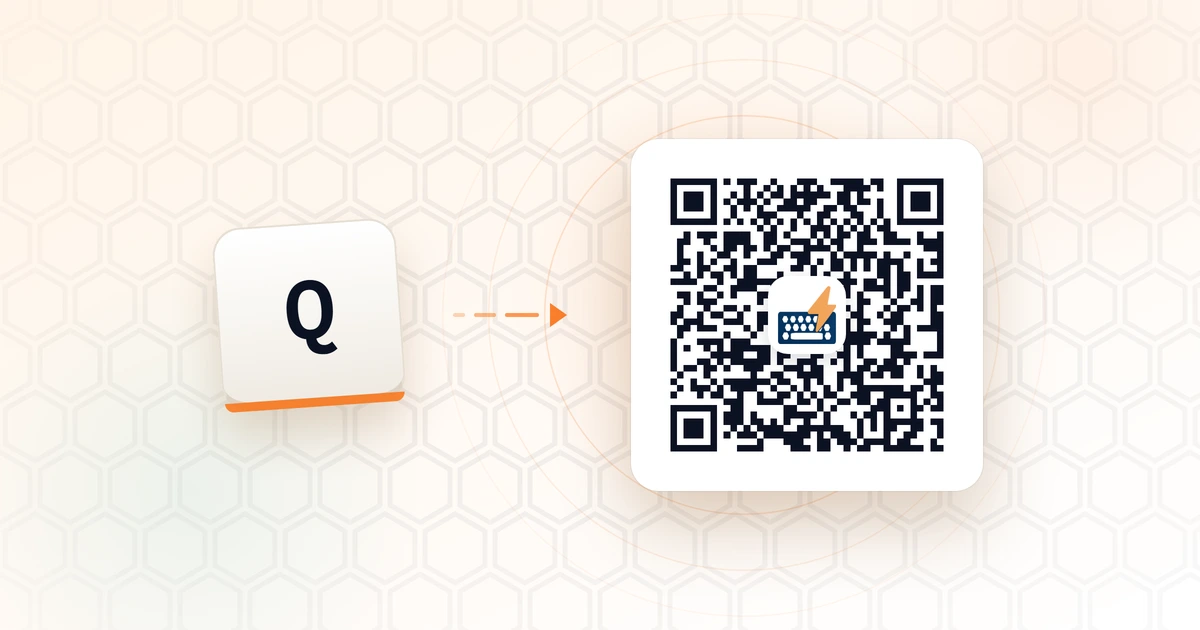
Sending a link from laptop to phone is a solved problem that nobody solved well — right-click, share, pick an app, wait. This binds it to a single key. Press Q and a QR of the current page appears; point your phone at it and you're there. Highlight something first and it encodes that instead, so a wifi password, an address, or a tracking number goes across just as easily.
One-time setup: turn on “Allow user scripts”
Chrome: open chrome://extensions, find BumbleTap, click Details, and turn on Allow user scripts. (Older than 138? Enable Developer mode at the top-right instead.) Reference: Google's announcement.
Microsoft Edge: open edge://extensions, open BumbleTap's Details, and turn on Allow user scripts — Edge is Chromium-based and carries the same toggle. Reference: Edge extensions docs.
It can switch back off if you reinstall the extension — so if this shortcut ever goes silent, check here first.
What's inside
- Q
Show a QR code
Encodes the current page URL — or your current selection, if you have one. Copy, save as PNG, or press Esc to dismiss. Press Q again to toggle it off.
// @require https://cdn.jsdelivr.net/npm/qrcode-generator@1.4.4/qrcode.min.js

// QR for this page — or for whatever you've selected.
// Press again (or Esc) to close.

const EXISTING = document.getElementById('bt-qr-overlay');
if (EXISTING) { EXISTING.remove(); }
else {
  // Selection wins: highlight a link, an address, a wifi password, anything —
  // and you get a QR of that instead of the page.
  const sel = (window.getSelection ? String(window.getSelection()) : '').trim();
  const payload = sel || location.href;
  const label = sel ? 'Selected text' : (document.title || location.hostname);

  const qr = qrcode(0, 'M');
  qr.addData(payload);
  qr.make();

  // Draw to canvas so the same bitmap serves both the on-screen code and the
  // PNG download. 12px modules is crisp on a phone camera at arm's length.
  const count = qr.getModuleCount();
  const cell = 12;
  const quiet = 4;
  const size = (count + quiet * 2) * cell;
  const canvas = document.createElement('canvas');
  canvas.width = canvas.height = size;
  const ctx = canvas.getContext('2d');
  ctx.fillStyle = '#ffffff';
  ctx.fillRect(0, 0, size, size);
  ctx.fillStyle = '#000000';
  for (let r = 0; r < count; r++) {
    for (let c = 0; c < count; c++) {
      if (qr.isDark(r, c)) {
        ctx.fillRect((c + quiet) * cell, (r + quiet) * cell, cell, cell);
      }
    }
  }

  const overlay = document.createElement('div');
  overlay.id = 'bt-qr-overlay';
  overlay.setAttribute('role', 'dialog');
  overlay.setAttribute('aria-label', 'QR code');
  overlay.style.cssText =
    'position:fixed;inset:0;z-index:2147483647;background:rgba(8,10,14,.72);' +
    'backdrop-filter:blur(3px);display:flex;align-items:center;justify-content:center;' +
    'font-family:system-ui,-apple-system,Segoe UI,sans-serif';

  const card = document.createElement('div');
  card.style.cssText =
    'background:#fff;border-radius:18px;padding:22px;max-width:340px;width:calc(100% - 40px);' +
    'box-shadow:0 24px 60px rgba(0,0,0,.45);text-align:center';

  canvas.style.cssText = 'width:100%;height:auto;display:block;border-radius:10px';
  card.appendChild(canvas);

  const cap = document.createElement('div');
  cap.textContent = label;
  cap.style.cssText =
    'margin-top:14px;font-size:13px;font-weight:600;color:#0C1222;' +
    'white-space:nowrap;overflow:hidden;text-overflow:ellipsis';
  card.appendChild(cap);

  const sub = document.createElement('div');
  sub.textContent = payload;
  sub.style.cssText =
    'margin-top:3px;font-size:11px;color:#6B7690;line-height:1.4;' +
    'max-height:32px;overflow:hidden;word-break:break-all';
  card.appendChild(sub);

  const row = document.createElement('div');
  row.style.cssText = 'display:flex;gap:8px;margin-top:16px';
  card.appendChild(row);

  const button = (text, onClick) => {
    const b = document.createElement('button');
    b.textContent = text;
    b.style.cssText =
      'flex:1;padding:9px 0;border-radius:9px;border:1px solid #E4E7EE;background:#F7F8FC;' +
      'font:600 12.5px system-ui,sans-serif;color:#0C1222;cursor:pointer';
    b.onmouseenter = () => { b.style.background = '#EEF0F6'; };
    b.onmouseleave = () => { b.style.background = '#F7F8FC'; };
    b.onclick = (e) => { e.stopPropagation(); onClick(b); };
    row.appendChild(b);
    return b;
  };

  button('Copy', (b) => {
    navigator.clipboard.writeText(payload).then(() => {
      b.textContent = 'Copied';
      setTimeout(() => { b.textContent = 'Copy'; }, 1200);
    });
  });

  button('Save PNG', () => {
    const a = document.createElement('a');
    a.download = 'qr-' + location.hostname + '.png';
    a.href = canvas.toDataURL('image/png');
    a.click();
  });

  button('Close', () => close());

  overlay.appendChild(card);
  card.onclick = (e) => e.stopPropagation();
  overlay.onclick = () => close();
  document.body.appendChild(overlay);

  function close() {
    overlay.remove();
    document.removeEventListener('keydown', onKey, true);
  }
  function onKey(e) {
    if (e.key === 'Escape') { e.preventDefault(); close(); }
  }
  document.addEventListener('keydown', onKey, true);
}
Adding a blueprint sends it straight to the extension in your browser — nothing is stored on our servers. You approve every add in BumbleTap's own popup, imports merge with your existing shortcuts, and everything stays editable afterward.